Selectable text (item type)
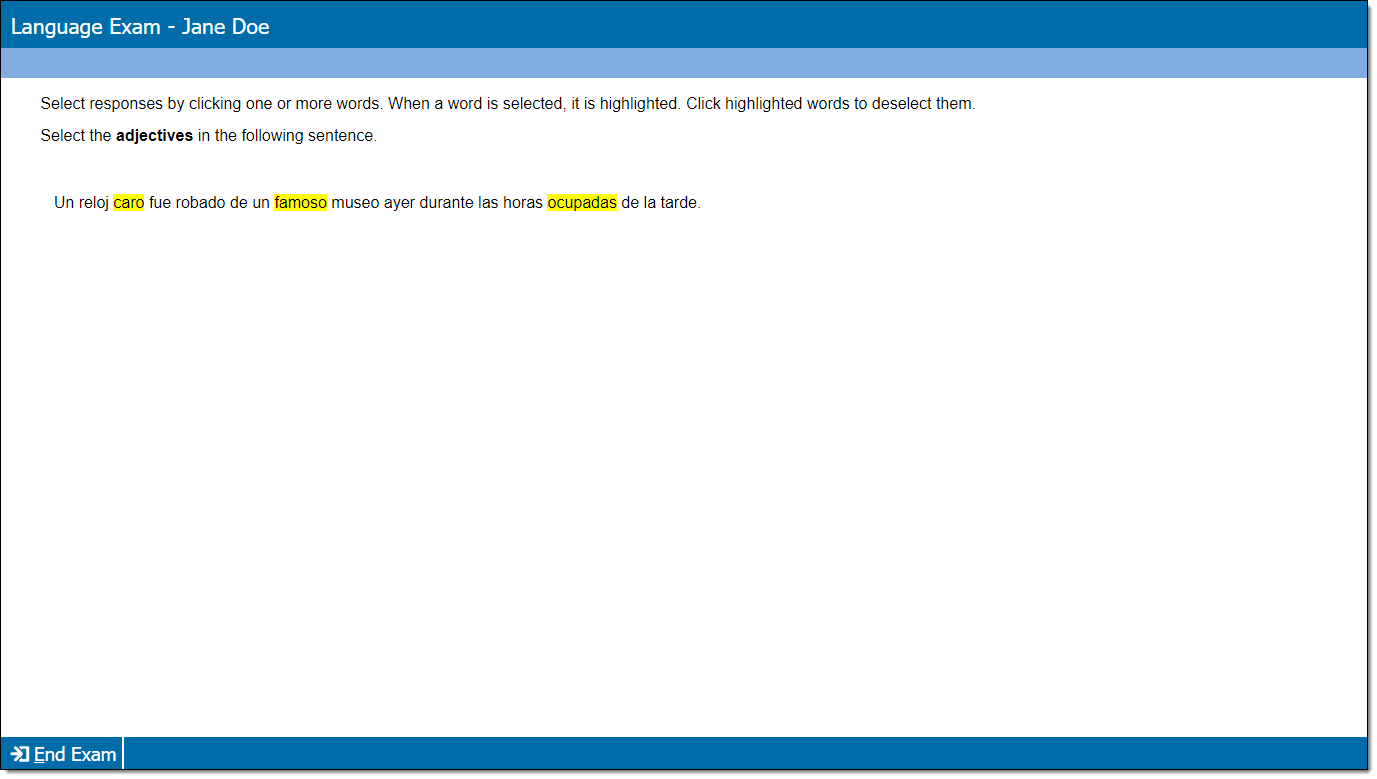
Selectable text item types display content with a text passage containing selectable words. Each word in the passage can be clicked (i.e., selected) by the candidate. Selected words are highlighted and highlighting is removed if the word is deselected. Each selected word is scored independently (correct selections award a point and incorrect selections remove a point).
 Selectable text templates do not support variables or dynamic text.
Add item content
|
*Note: Each content component (the stem or question) contains either text or media and may have a custom label. For example, a text component may be labeled as "Question" or "Stem", and a media component may be labeled as "Media", "Video", or "Audio". |
- In the Content component* field(s), enter text or upload the required media file type, depending on the item requirements.
- For text components, you can format text or add tables, images, and equations.
- If configured for your project, some text components (such as stem and basic response options) can include variables or dynamic text. (These are not available for all item templates or text fields.) View unsupported item typesView unsupported item types
Variables not supported for:
- Display
- External QTI
- Selectable text
- Audio capture
- Audio capture with video
- Some custom templates (depends on configurations)
Dynamic text not supported for:
- Audio capture
- Audio capture with video
- Selectable text
- Some custom templates (depends on configurations)
- If configured for your project, some text components (such as stem and basic response options) can include variables or dynamic text. (These are not available for all item templates or text fields.) View unsupported item typesView unsupported item types
- For media components, you will only be able to add the types of media configured for the item type (for example, you may be able to add audio files such as MP3, but not video files such as MP4).
- For text components, you can format text or add tables, images, and equations.
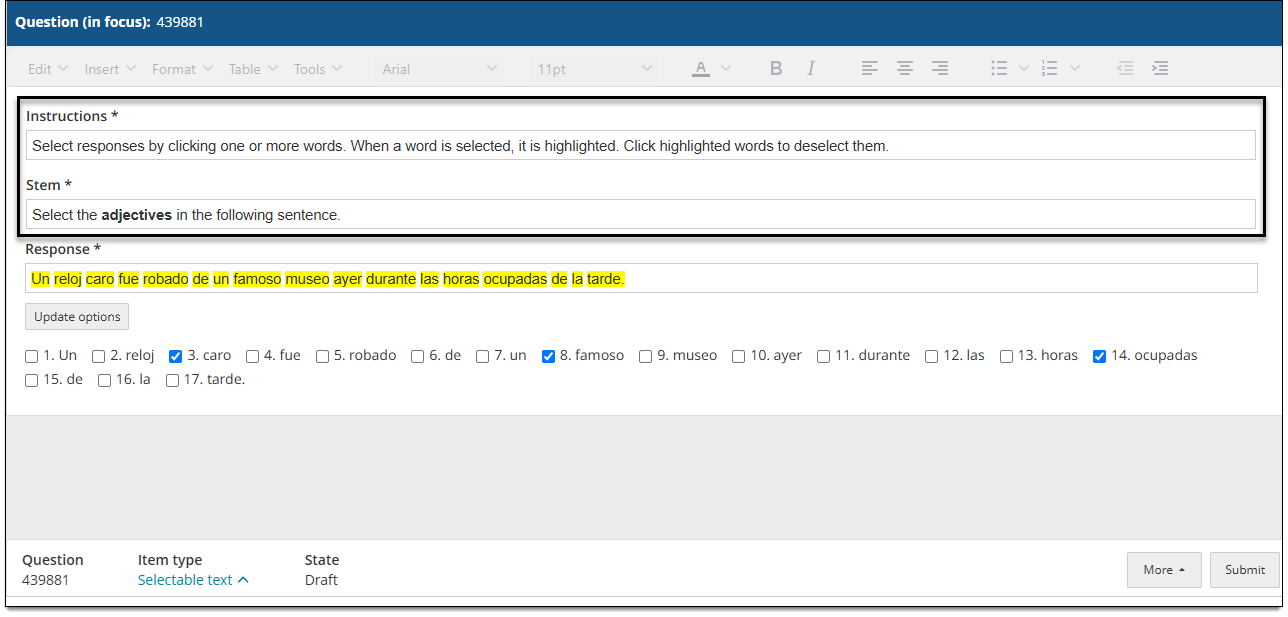
Add the selectable text passage and response options
- In the Response field, type the passage containing the words that can be selected by candidates. All words in the response field will be selectable.
- Click Add options.
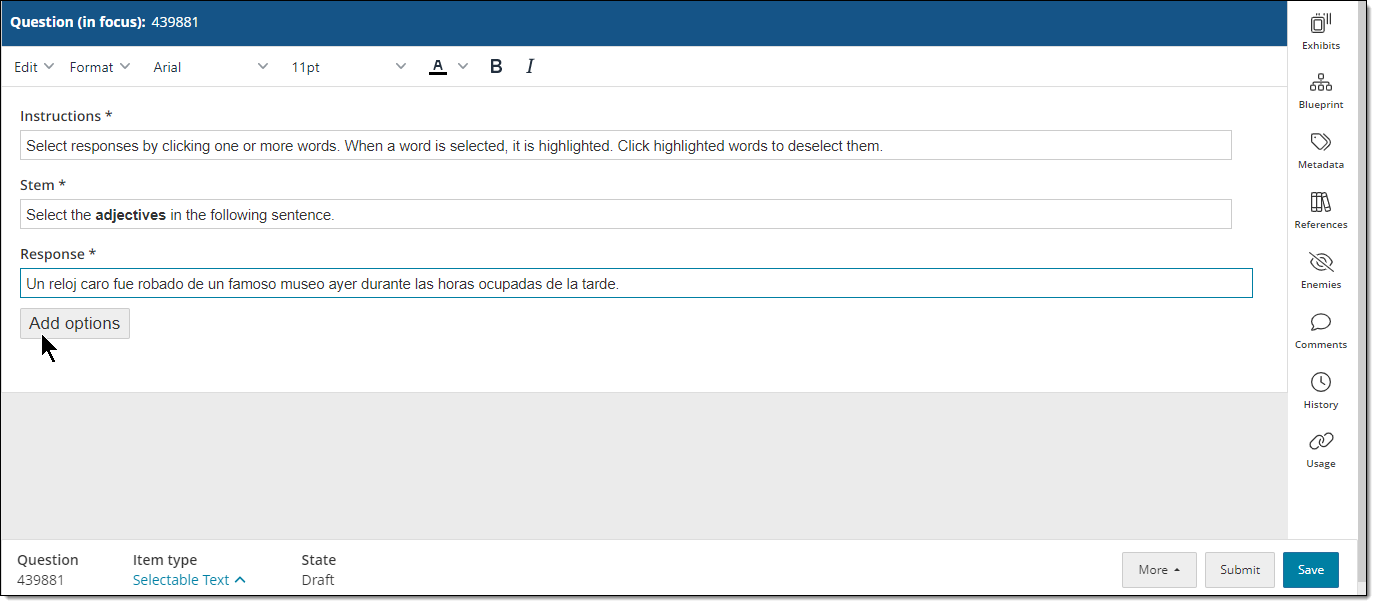
- Each word will be duplicated below the Response field and separated by a numbered check box to allow indication of the correct response(s).
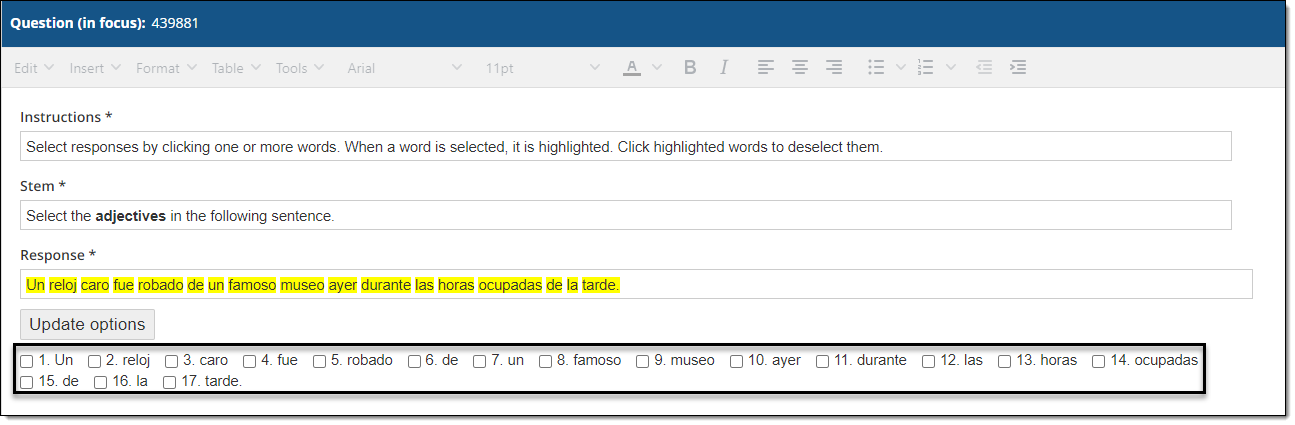
Select the correct responses
- Click the numbered checkbox next to each word that is a correct response.
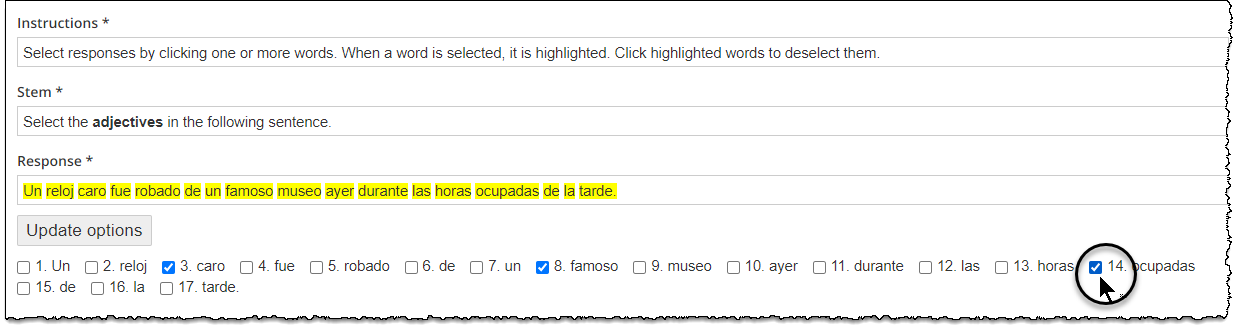
- To update the list of options if you change the response text, click Update options.
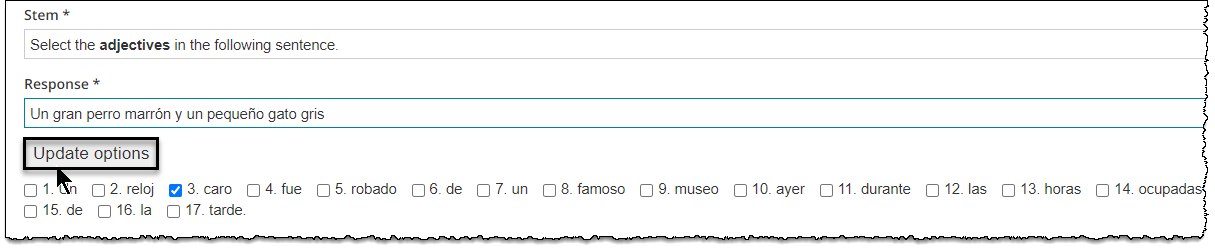
- The word choices below the Response field are updated to match the new response text and all checkboxes are initially cleared.
How the item is scored
Scoring depends on the configurations defined in the item type template.
- Multiple option sum negative adds points for correct options and subtracts points for incorrect options. For this item type, 'options' are selected words.
- No scoring means there is no correct or incorrect answer. This scoring model is used for items such as survey questions or pretest items.
Additional options
See Author an item for a complete guide to item editing, including how to format text, add tables, insert images and media, apply metadata, select a blueprint area, etc.