Add equations
Equations can be added to an item's content components (stem, passages, etc.), response options, and/or response labels. Where you can add equations depends on the item type template you are working with.
 Equations can also be added to comments and block text metadata or added as reference materials.
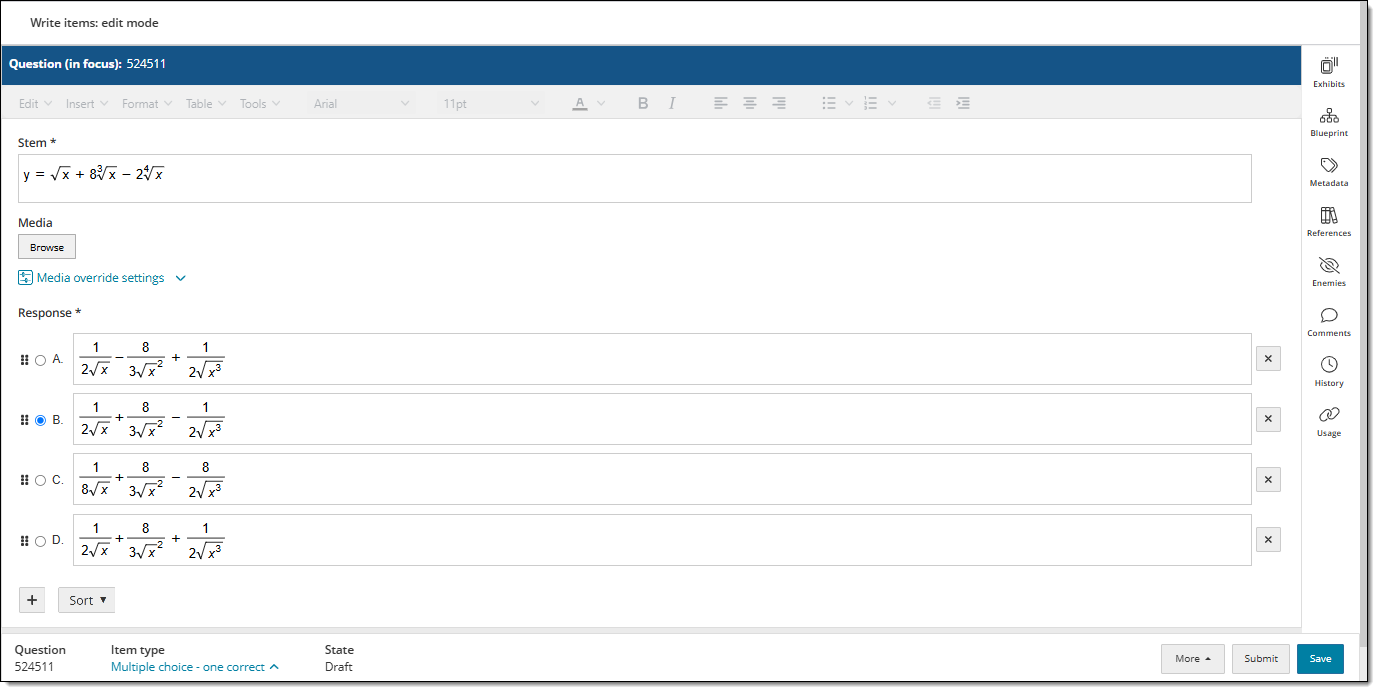
Add an equation
Add equations to an item's content components (stem, passages, etc.), response options, and/or response labels. Where you can add equations depends on the item type template you are working with.
- Click inside the Stem, Response, or Passage.
- In the editing toolbar , go to Insert > Equations.
- In the MathType editor, create the equation. You can use the function buttons in the editor and type certain characters with your keyboard to create the desired equation.
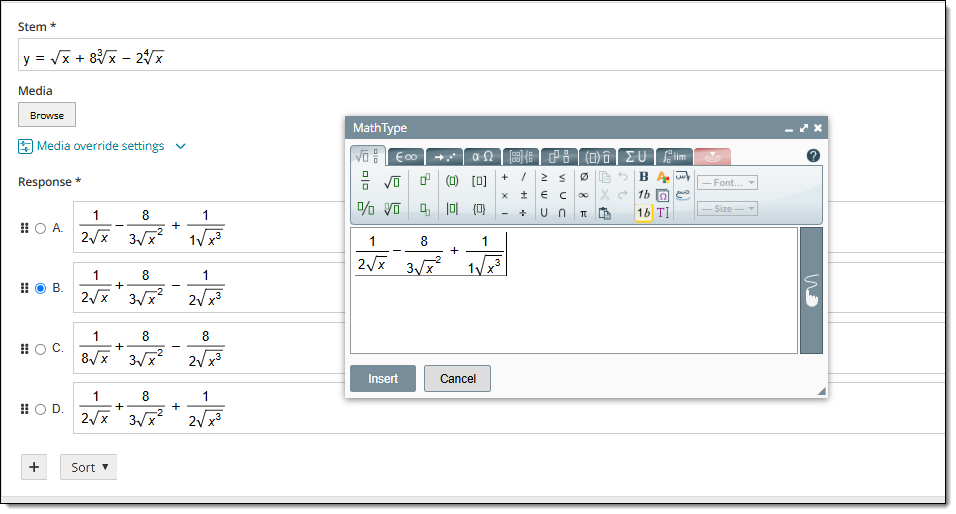
- Click Insert. The equation is added to the item.
- Click Save for the item.
Edit an equation
Edit the contents of an equation (such as the numbers and mathematical symbols) or the formatting (such as the font or font size).
- Double-click the equation. This opens the MathType editor.
- Make the changes to the equation and click Insert.
- To change the size of the text, numbers, or symbols, click the General tab. Select the desired content and use the Font or Size menus to make changes.
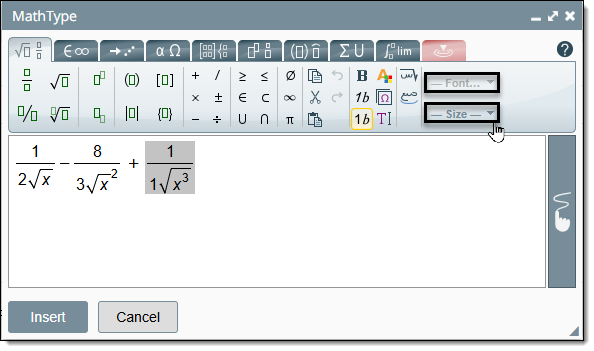
- To change the size of the text, numbers, or symbols, click the General tab. Select the desired content and use the Font or Size menus to make changes.
- The updated version of the equation is now shown. (Previous versions of the equation may be available in the item's history.)
- Click Save to save the item.
|
|
Delete an equation
- Click the equation to select it.
- Press the Delete or Backspace button on your keyboard.