Add or edit metadata
Metadata is used to classify items for reporting and searching purposes. It can also be exported with exam QTI.
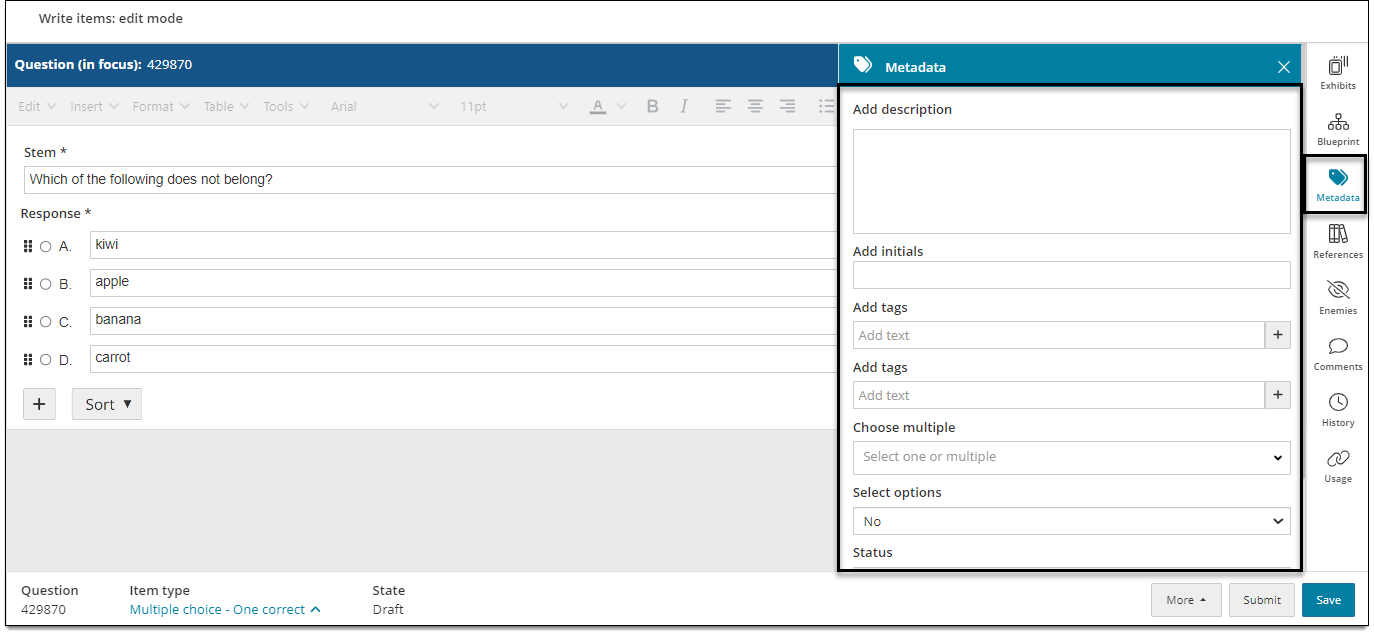
Add metadata
Metadata is used to classify items for reporting and searching purposes. It can also be exported in exam QTI.
- In the item settings panel
 , click Metadata.
 - Enter text or select options based on the available fields.
- Click Save in the lower-right corner of the page.
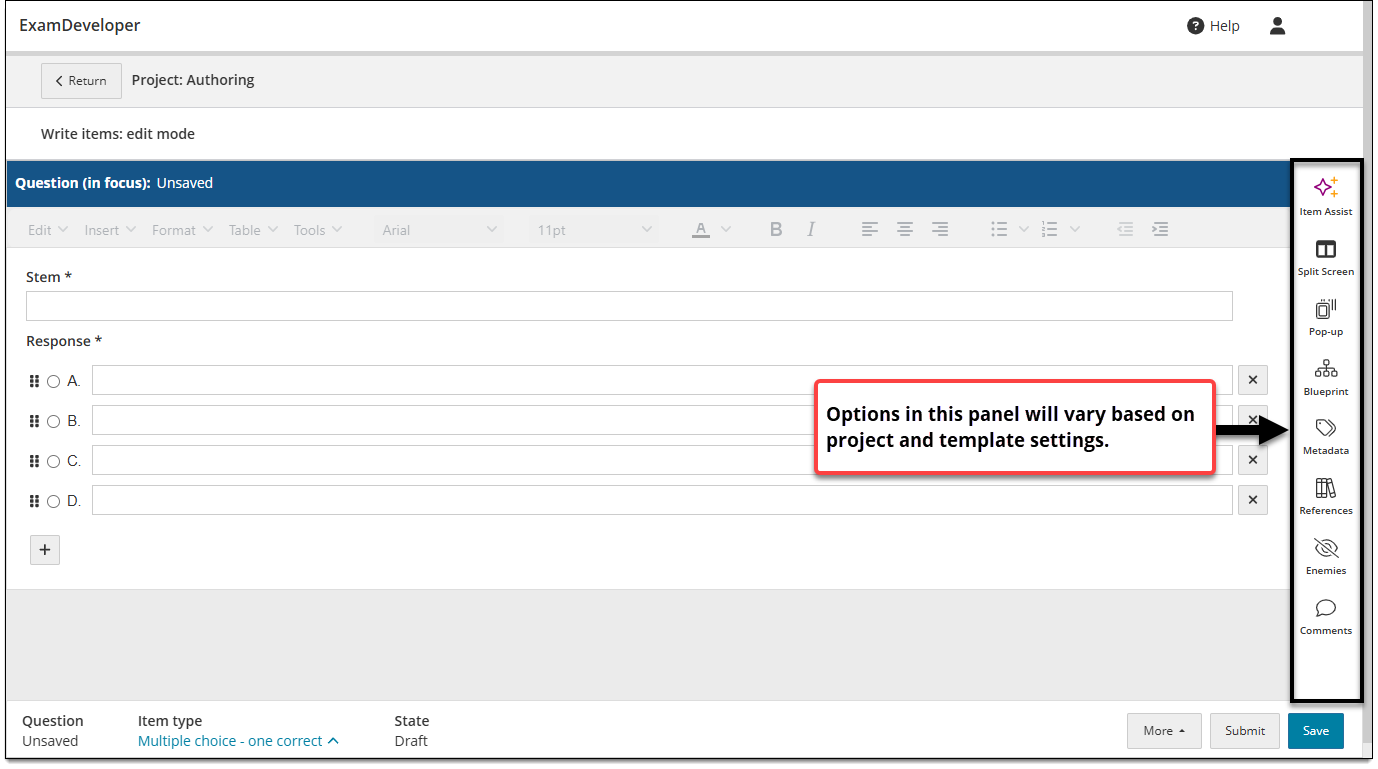
Metadata types
Depending on the settings configured by your project manager, you may see one or more of the following metadata options:
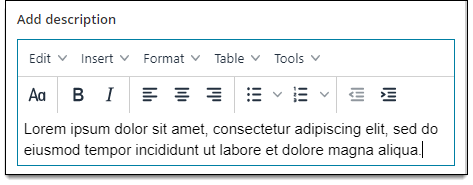
Block text
Add an entire block of text or HTML. You can also add assets, tables, or equations. Examples: descriptions, definitions, or anything that requires more than one line of text and possibly supporting assets or tables.
Single-line text
Add only a single line of text. You cannot add HTML, assets, or tables. Examples: simple responses such as a reviewer's initials or comments such as "approved".

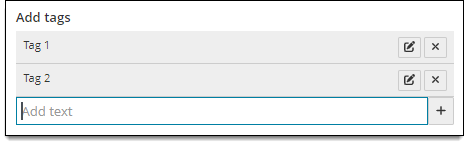
Multiple entry text
Add one or more single-line text entries. Examples: tags, statuses, category names, etc.
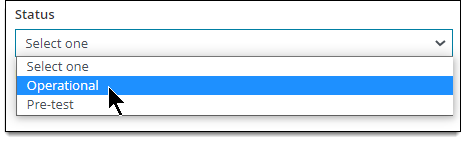
Drop-down list
Choose one option from a drop-down list. Examples: tag, status, category name, process step, etc.
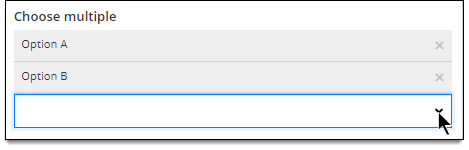
Multi-select list
Choose multiple options (or however many are specified) from a list. Examples: multiple tags, statuses, category names, process steps, etc.
Check box
Select check boxes next to available options. Examples: statuses, category names, process steps, etc.
Edit or remove metadata
- In the item properties panel , click Metadata.
- Make the desired changes to the metadata.
- Click Save in the lower-right corner of the page.
You can make the following changes to each metadata type:
- Block text: edit the text, formatting, or assets.
- Single-line text: modify the text.
- Multiple entry text: click the edit icon and modify the entry, or click the delete icon to remove the entry.
- Drop-down list: choose a different option from the menu.
- Multi-select list: remove selected options and/or choose new options.
- Check box: select or deselect options.
If an asset is included, you may be able to preview or download it. Right-click the asset icon and select Download to download the file or Full view to preview it.
- Images can be downloaded but not previewed, since the full image is displayed with the item.
- Certain document files (such as PDFs) and media files (such as MP3 files) can be downloaded or previewed in a separate browser tab/window.