Add or view comments
Add comments to facilitate communication between item authors and reviewers, or to leave notes about an item. (This feature is NOT related to comments that can be entered by candidates during exam delivery.)
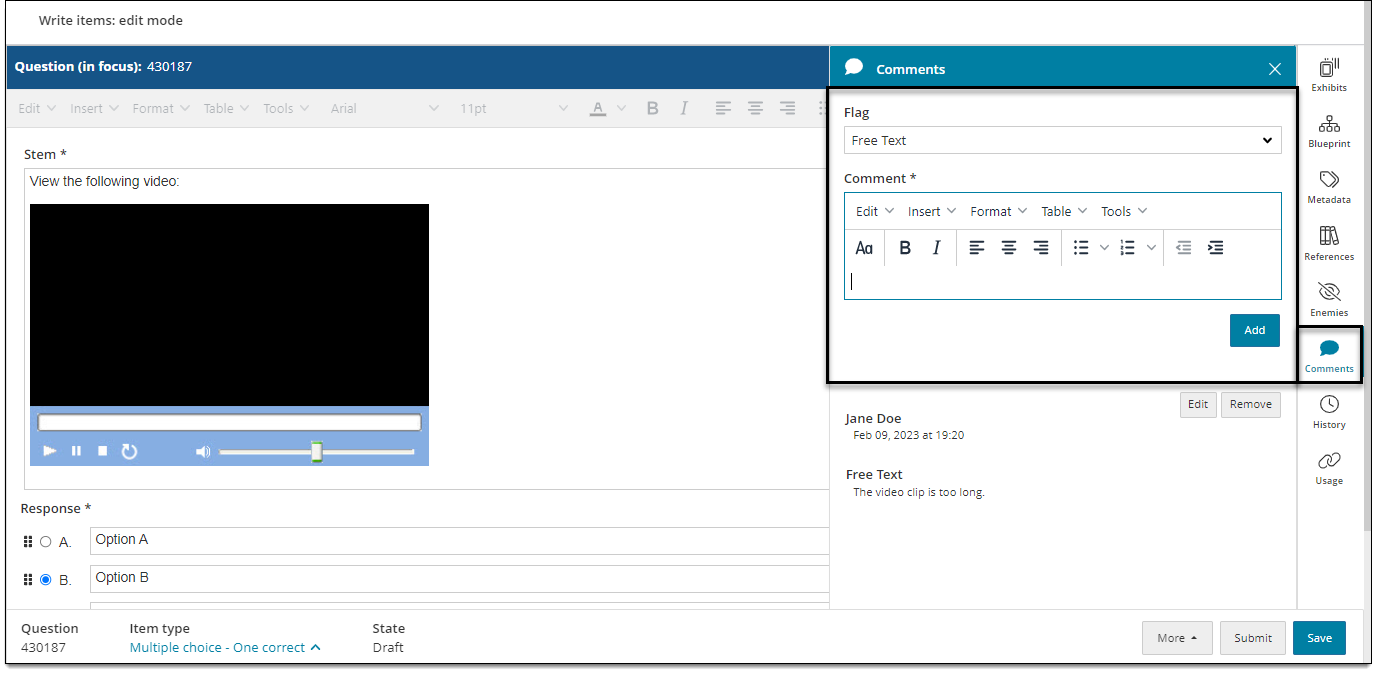
Add a new comment
Comments are used for internal communication between item authors and reviewers (this feature is NOT related to comments that can be entered by candidates during exam delivery).
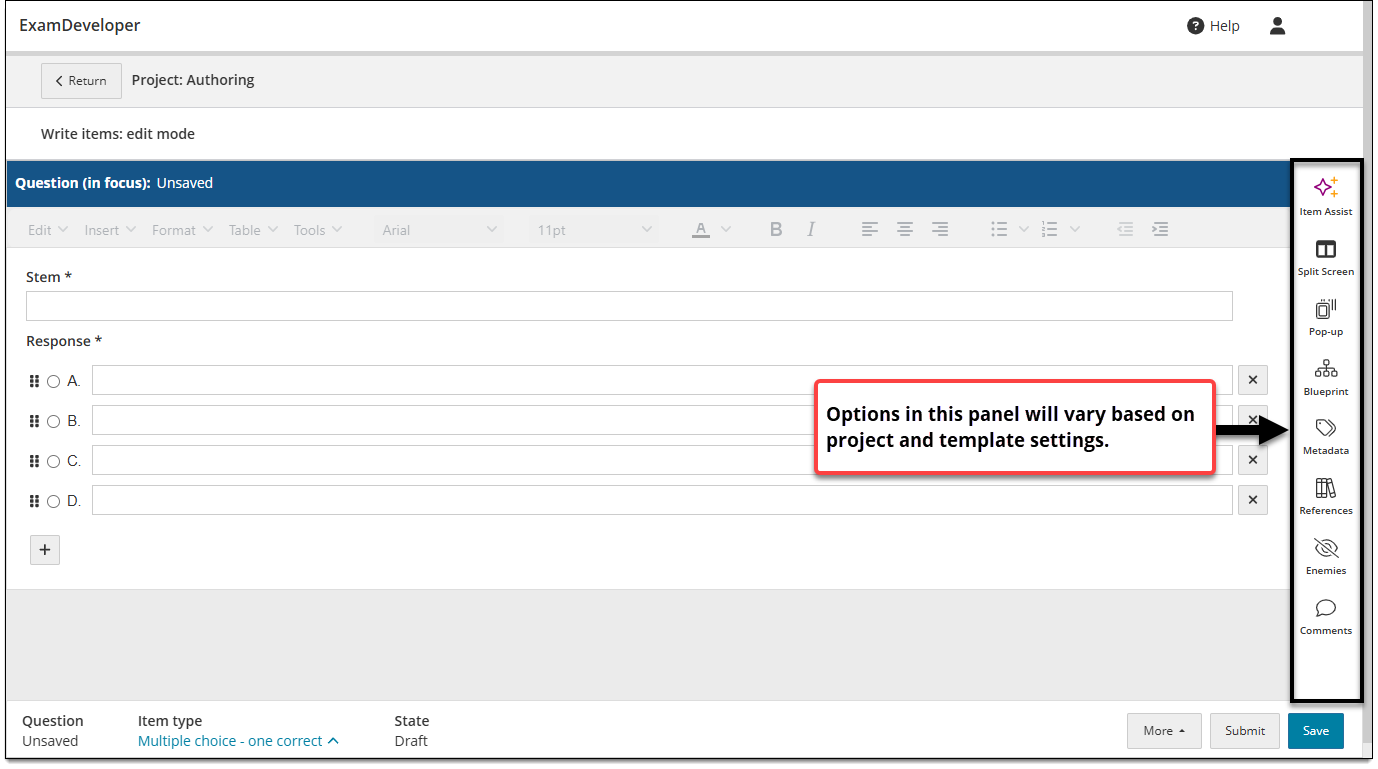
- In the item settings panel
 , click Comments.
 - To enter a new comment, choose a type from the Flag drop-down menu. This flags the comment by subject, issue, or category. Flags are configured by the item bank manager.
- Enter comments in the Comment text field. If desired, you can apply basic formatting to the text or insert assets, tables, and equations.
- Click Add.
You can view older comments left by other authors or reviewers beneath newly added comments.
View or edit comments
- In the item properties panel , click Comments.
- Comments left by authors or reviewers are displayed beneath any newly added comments. The comment author and date modified are also shown.
 You may only be able to see your own comments while other users' comments are hidden. This is determined by the project manager.
- If an asset is included, you may be able to preview or download it. Right-click the asset icon and select Download to download the file or Full view to preview it.
- Images can be downloaded but not previewed, since the full image is displayed with the item.
- Certain document files (such as PDFs) and media files (such as MP3 files) can be downloaded or previewed in a separate browser tab/window.
- To update a comment, click the Edit button.
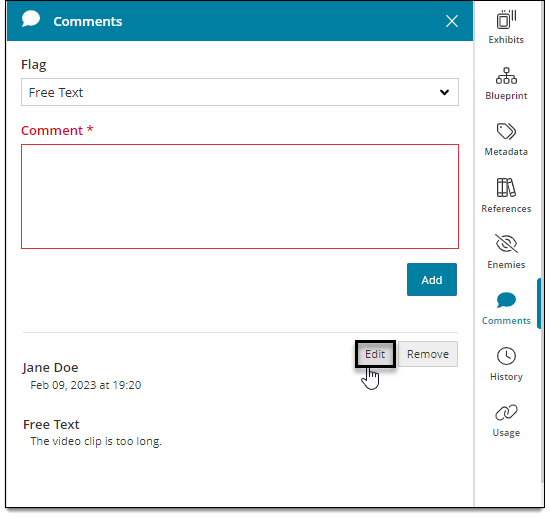
- Then make the desired changes and click Update.
- To delete the comment, click the Remove button.