Format and edit text
Apply formatting and editing options to text content (such as the question and response options).
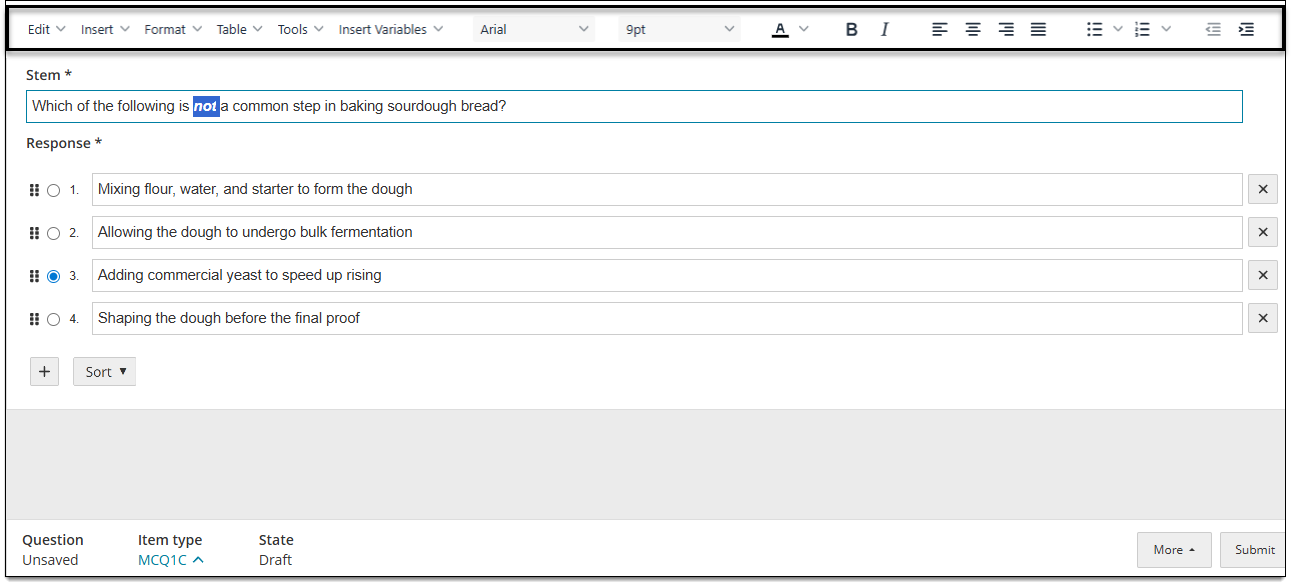
Use the editing toolbar
The following formatting and editing options are available in the editing toolbar. All changes are visible to the candidate during exam delivery.
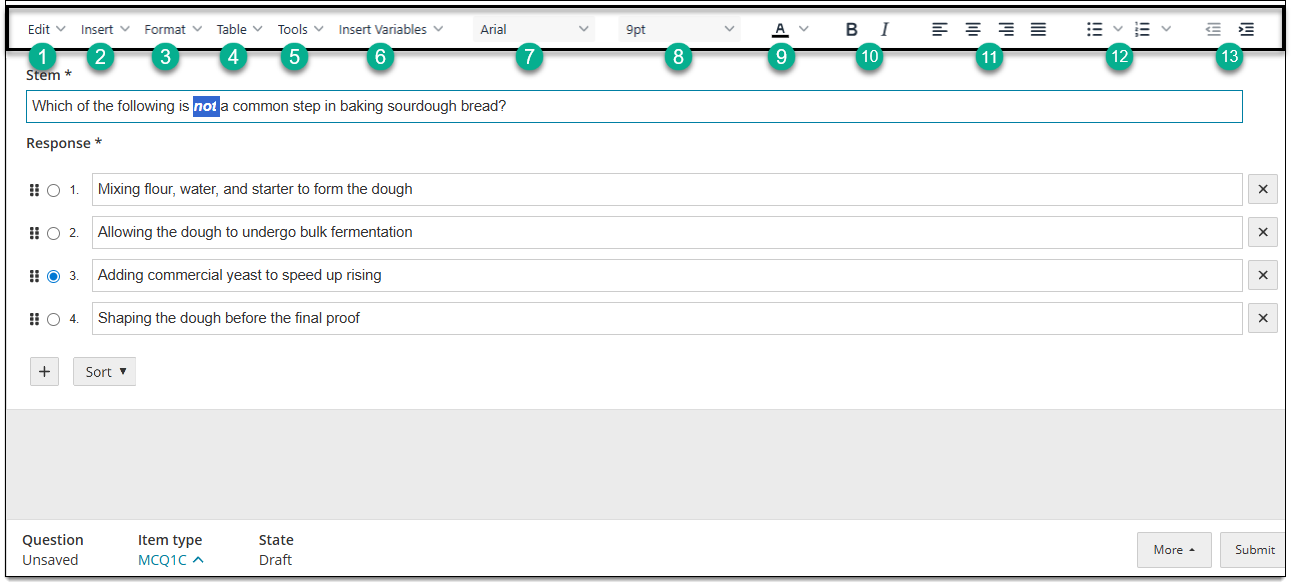
- Edit menu: undo, redo, cut, copy, or select text.
- Insert menu: insert images, PDFs, media, equations, or special characters.
- Format menu: apply basic formatting styles (such as bold or italic text) and heading styles (Heading 1, Heading 2, etc.), or clear all formatting from selected text.
- Table menu: add tables.
- Tools menu: additional options including Find and replace, Word count, and Source code (opens the HTML for the selected content area and make changes to the source code instead of using the text editor). Note: Spell check is available within text fields by right-clicking a red-underlined word to display alternate spelling suggestions.
- Insert variables: (if configured for your project) add variables within text in the item content (the question or response options).
- Font: change the font style (e.g., Times New Roman, Arial, etc.) - the default style is set by the item bank manager.
- Font size: change the size of the text - the default size is set by the item bank manager.
- Text color: change the color of the text.
- Bold and italic formatting: style the text as bold, italic, or bold and italic.
- Alignment: align the selected text to the left side, right side, or center, or space the text evenly across the width of the page.
- List styles: create an ordered list denoted by letter or number, or an unordered list denoted by bullet points.
- Decrease or increase indent: removes or adds horizontal space at the beginning of a text line; or for lists, this option nests the bullet point or numbered line to the next higher (decrease indent) or lower (increase indent) level of the hierarchy.
- Spell check: opens the spell checker that presents all potentially misspelled words throughout the item's text content and provides suggestions for replacements.
Use the spell checker
You can check the spelling of individual words within item text (such as directly in the stem or response options), or review all identified misspellings in the item at once.
Spell check within text
Words identified as misspelled will be underlined in red within text components.
- Right-click a red-underlined word to display the spell checker options.
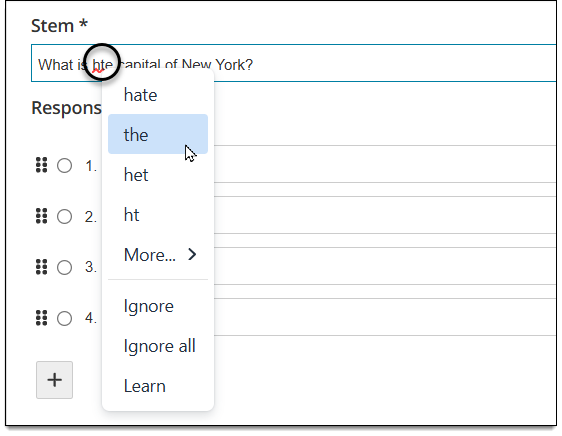
- Select one of the suggested spellings or other options:
- More displays additional suggestions
- Ignore removes the red underline for that instance of the spelling, but will still identify other instances of the same spelling.
- Ignore all removes the red underline for all instances of that spelling.
- Learn adds the spelling as a word in the project's dictionary so that it is no longer triggered as misspelled by the spell checker.
- Repeat steps 1-2 for additional words as needed.
Review all misspellings
Access the spell checker from the editing toolbar to review all identified misspellings in the item at once.
- Click the spell check icon
 in the editing toolbar.
 - If misspellings are identified, the Spell checker modal opens and displays the following:
- Misspelled Word: the first occurrence of the misspelled word (this field is auto-populated and cannot be edited).
- Replace with: the modified or selected word that will be used to replace the misspelled word.
- Suggestions: a list of related correctly-spelled words suggested for replacement.
- To correct the spelling, do one of the following:
- Type a replacement word in the Replace with text box and choose Replace (this instance only) or Replace all (all instances of the misspelling).
- Choose an option from the Suggestions menu and choose Replace (this instance only) or Replace all (all instances of the misspelling).
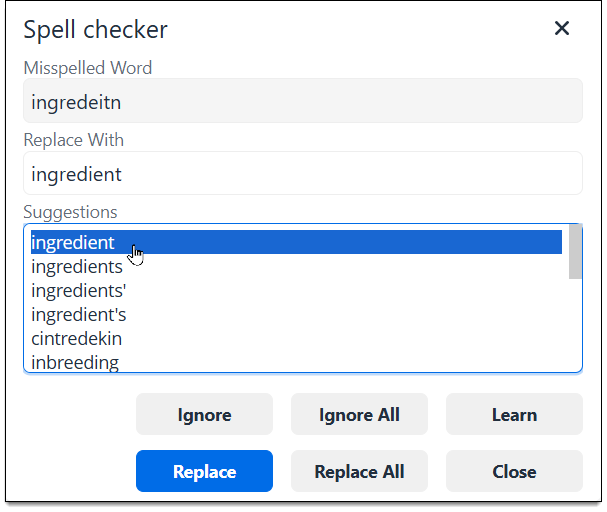
- Click Learn to add the word as is to the project's dictionary. (The word in the Replace with field will be used.) Upon clicking Learn, the spell checker modal closes and the word is no longer identified as misspelled.
- Optionally, you can ignore identified misspellings by choosing Ignore (skip the current misspelling and leave it as is) o Ignore all (skip this and all following instances of the misspelling).