Fill in the blank (item type)
Fill in the blank item types display content with one or more blank text fields embedded in the response area, which are typically formatted as sentences or paragraphs with gaps of missing content. The candidate must type correct responses in all of the blank fields to score the item correctly, or, each individual response field is scored independently (correct responses earn points and incorrect responses do not earn points). Alternative spellings can be defined and case-sensitivity is optional.
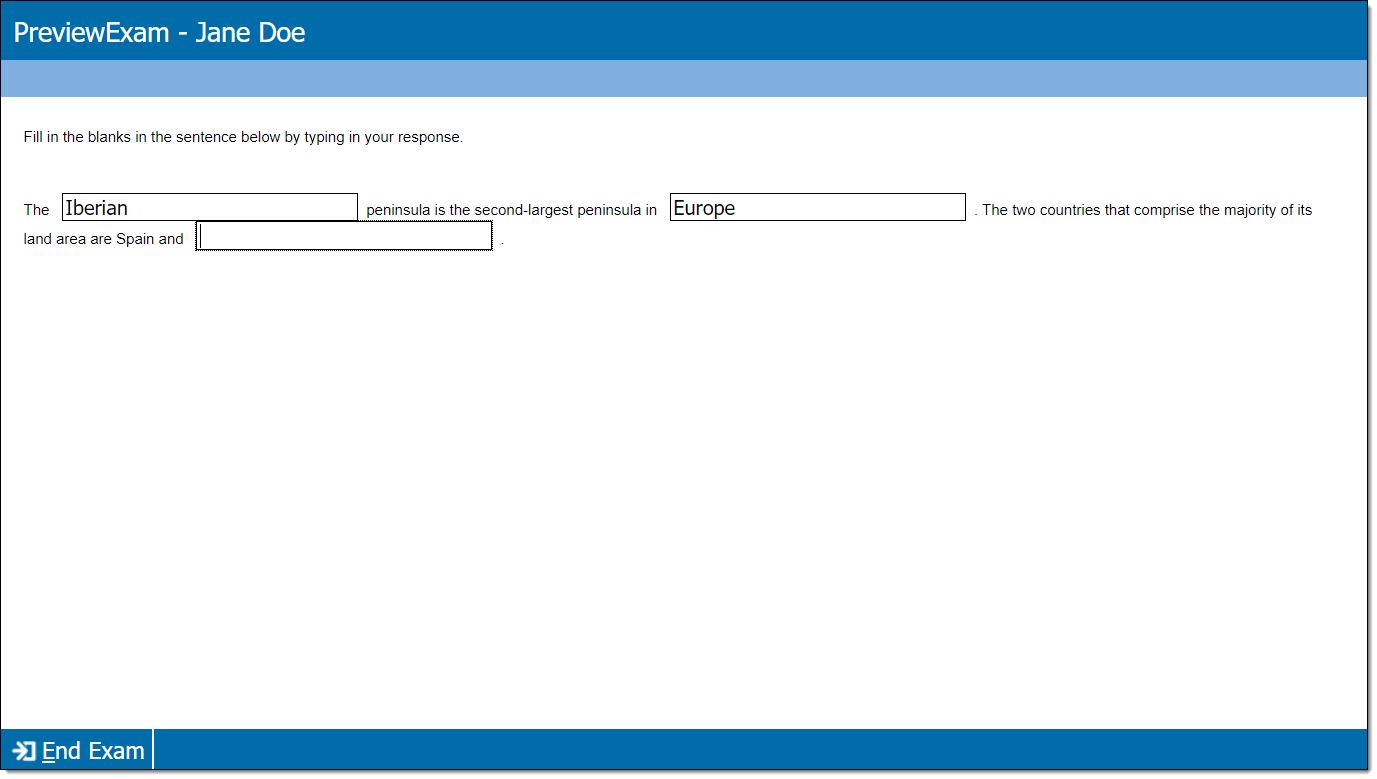
Add item content
|
*Note: Each content component (the stem or question) contains either text or media and may have a custom label. For example, a text component may be labeled as "Question" or "Stem", and a media component may be labeled as "Media", "Video", or "Audio". |
- In the Content component* field(s), enter text or upload the required media file type, depending on the item requirements.
- For text components, you can format text or add tables, images, and equations.
- If configured for your project, some text components (such as stem and basic response options) can include variables or dynamic text. (These are not available for all item templates or text fields.) View unsupported item typesView unsupported item types
Variables not supported for:
- Display
- External QTI
- Selectable text
- Audio capture
- Audio capture with video
- Some custom templates (depends on configurations)
Dynamic text not supported for:
- Audio capture
- Audio capture with video
- Selectable text
- Some custom templates (depends on configurations)
- If configured for your project, some text components (such as stem and basic response options) can include variables or dynamic text. (These are not available for all item templates or text fields.) View unsupported item typesView unsupported item types
- For media components, you will only be able to add the types of media configured for the item type (for example, you may be able to add audio files such as MP3, but not video files such as MP4).
- For text components, you can format text or add tables, images, and equations.
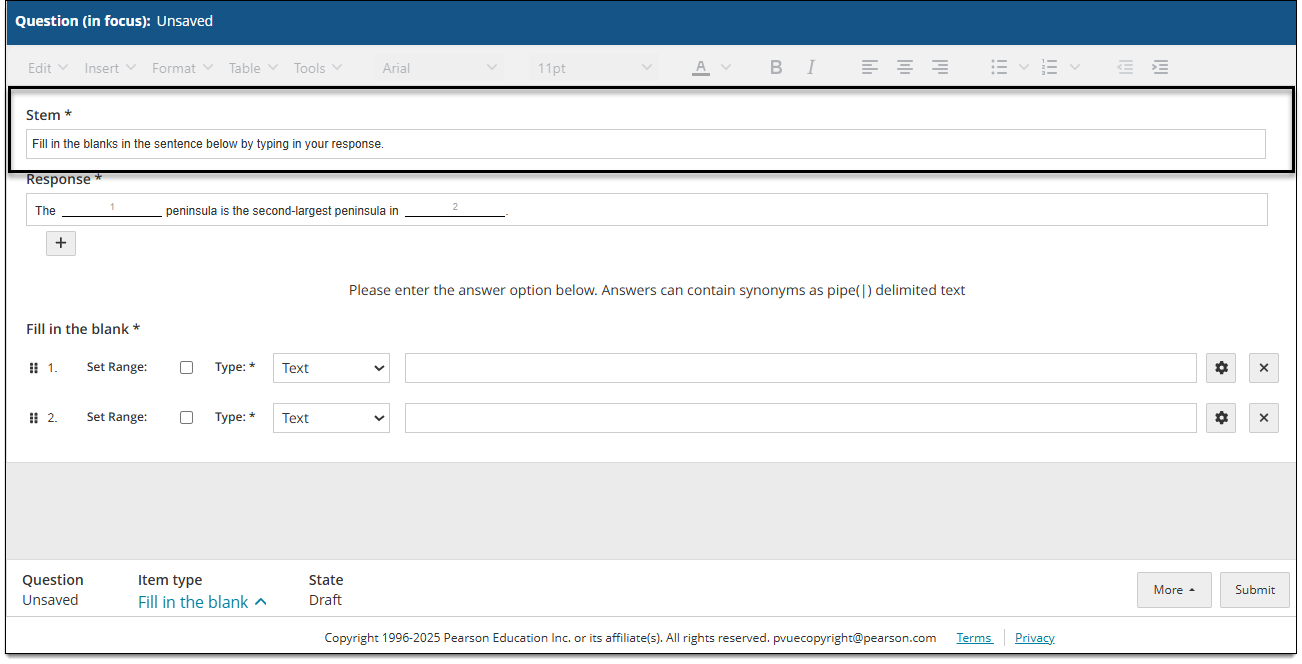
Add FIB response fields
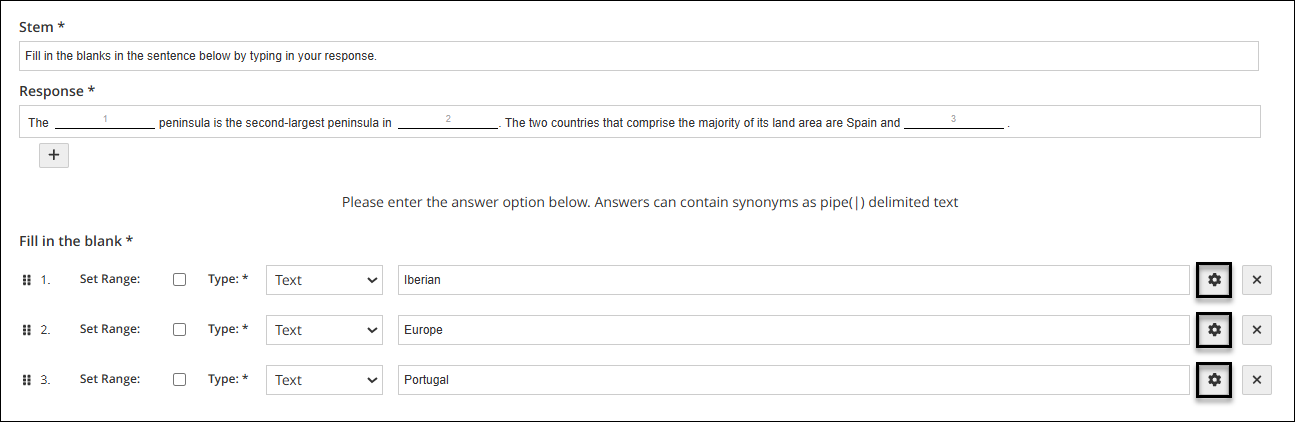
- In the Response field, begin entering the text that will contain fill-in-the-blank responses. When you arrive at the position where the candidate must enter a response, click the Add
 button below the text.
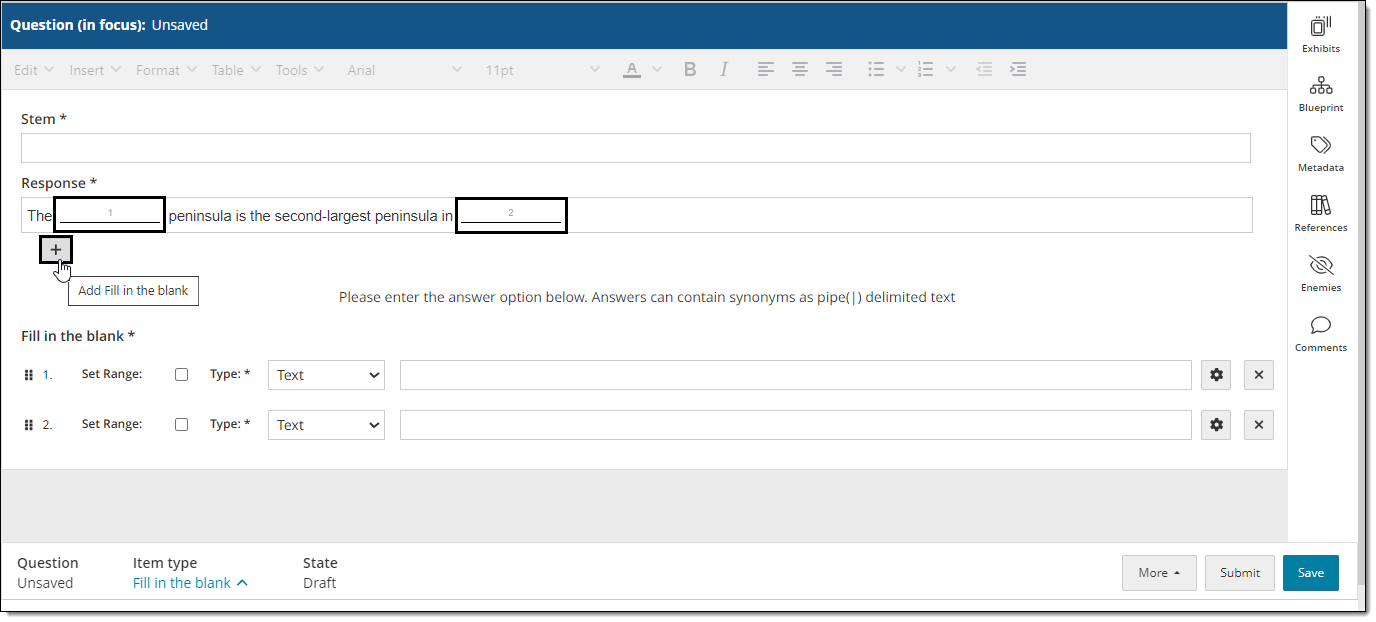
- This creates an FIB response field (a blank text box) where the candidate can enter a response.
Add the correct responses
- When you add an FIB field to the response text, a corresponding response is added in the Fill in the blank response list.
- Select the response Type from the drop-down menu (Text, Decimal, or Integer).

- If the response type is Text, type the correct response that the candidate should provide. Alternative responses (such as alternate spellings, abbreviations, or other words and phrases) can be added by separating each possible response with a pipe delimiter("|").
- If the response type is Decimal or Integer, you can select the Set range checkbox and indicate the acceptable range of values instead of a specific value (for example, accept any value from 5-10 instead of only 5). Choose Greater than or Greater Than or Equal to, enter the minimum value, choose Less than or Less than or Equal to, and enter the maximum value. Example: "Greater than 4 and less than 11".
 Variables and dynamic text cannot be added to FIB response options; however, they can be added to the stem/question.
Set item or response weight
- Depending on the item template configurations, you may be able to set a different weight for the item, or for each response.
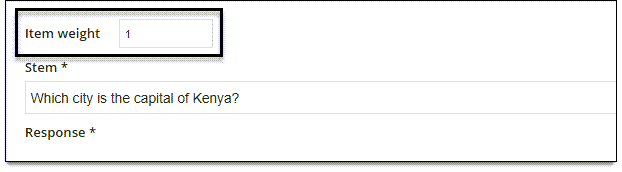
- If the template allows you to edit the Item Weight field, you can input a value other than 1. This changes the total point value for the item. For example, if you input "2", the candidate would earn 2 points for a correct response. Any decimal value between 0.001 and 9999 is accepted, with a maximum of four characters including the decimal point.
- If you see the Score field for each response option, you can input a different value (any decimal value between 0.001 and 9999 is accepted, with a maximum of four characters including the decimal point). This changes the total point value for each individual response option.

- If the template allows you to edit the Item Weight field, you can input a value other than 1. This changes the total point value for the item. For example, if you input "2", the candidate would earn 2 points for a correct response. Any decimal value between 0.001 and 9999 is accepted, with a maximum of four characters including the decimal point.
How the item is scored
Scoring depends on the configurations defined in the item type template.
- With Dichotomous scoring, the candidate must type correct responses in all of the blank fields to score the item correctly. Depending on item configurations, you may be able to set a different weight for the item.
- With Polytomous scoring, points are awarded for each correct fill-in-the-blank (FIB) response. By default, one point is awarded for each correct response. Depending on item configurations, you may be able to set a different weight for each response.
- No scoring means there is no correct or incorrect answer. This scoring model is used for items such as survey questions or pretest items.
Set response delivery properties and restrictions (if allowed)
|
|
- To modify the delivery properties and/or restrictions for a specific response, click the Settings
 icon for the response.
- A pop-up window is displayed for the response option.
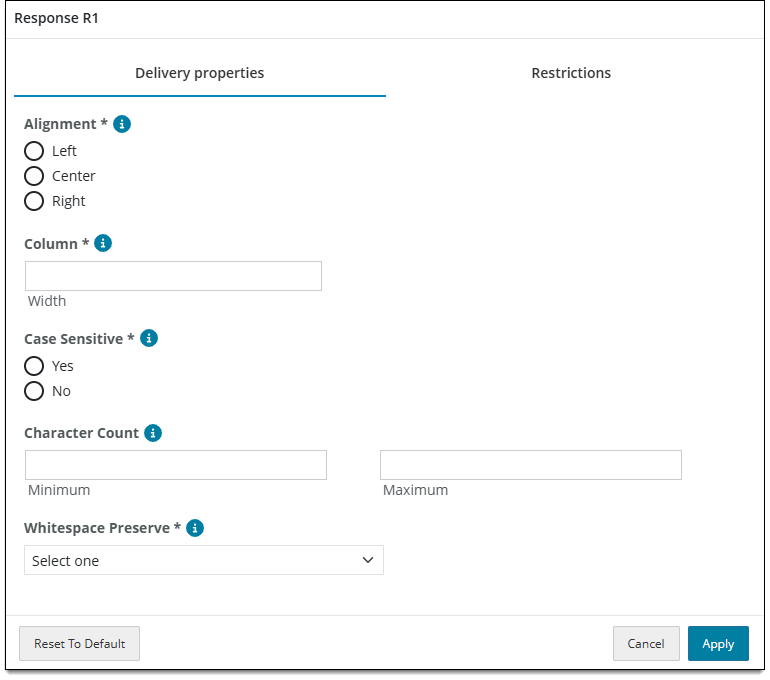
- In the Delivery properties tab, modify the following properties as needed:
- Alignment: Choose Left, Center, or Right to specify how text is aligned within the response field (text box). For example, selecting Center will align the candidate's typed response in the center of the text box.
- Column: Enter a positive numeric integer (1 or greater) to define the width of the response field (text box). This number will indicate the maximum number of characters displayed in a single line before the text will wrap within the text box.
- Case Sensitive: Select Yes to specify that the candidate's response must exactly match the case of the correct response (key). Select No if the candidate's response does not need to exactly match the key (case sensitivity will be ignored).
- Character Count: Enter a positive numeric integer (1 or greater) for the Minimum and Maximum number of characters that can be entered into each response field (text box).
- Whitespace Preserve: Choose an option to specify how space characters are handled in the scoring of the candidate's response. The option you select indicates whether any spaces typed in candidate responses are used in evaluating those responses and, if so, how. Whitespace Preserve only applies to the Text response type. When Integer or Decimal are the selected response type, this field is disabled.
- Remove leading and trailing ignores any spaces typed at the beginning and end of a response. For example, if the correct answer is "Iberian Peninsula" and the candidate enters " Iberian Peninsula ", the response will be recorded as "Iberian Peninsula" with no spaces before "Iberian" or after "Peninsula". The space entered between "Iberian" and "Peninsula" will be preserved.
- Normalize ignores leading and trailing spaces and replaces two consecutive space characters with a single space. Use this option to 'normalize' a candidate's entire response by removing any unnecessary space characters presumably added by mistake.
- Remove all ignores all spaces in the candidate's response. Use this option if you want all typed spaces to be removed when evaluating the candidate's response.
- Preserve evaluates text exactly as typed, spaces included. Use this option if you want the candidate's entire response, including any spaces, to exactly match the response in the key (including spaces).
- To add restrictions, click the Restrictions tab. Restriction options will vary based on the response type that is selected (Text, Integer, or Decimal).
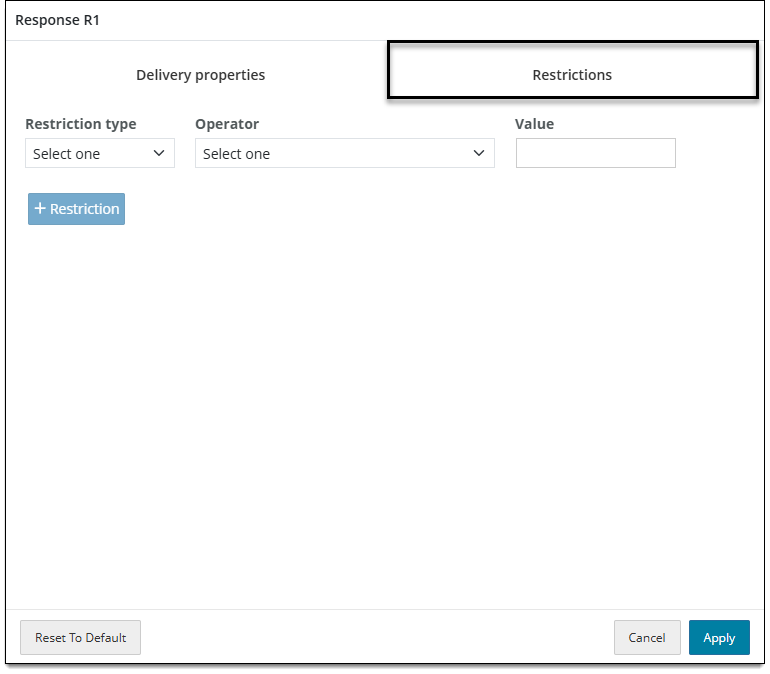
- From the Restriction type menu, choose Character count, Precision, or Word count.
- Word count only applies to Text response types, and Precision only applies to Decimal response types.
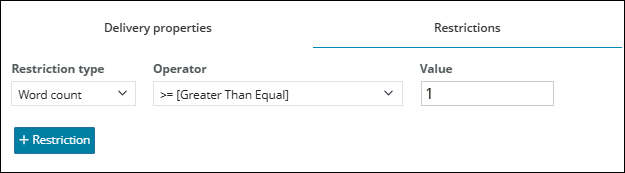
- For Character count or Word count, select an Operator and enter its Value to designate the restriction. For example , if you expect candidates to enter two words in the response field you would specify Word count >= 2.
 For the Word count restriction type, it is recommended to use the >= [Greater Than Equal] operator. If you specify "Word Count = 1", candidates will only be allowed to enter one character in the response field. For example, if you expect candidates to enter at least one word, you must specify "Word count >= 1".
- For Precision, enter a numeric value to restrict the number of digits allowed after the decimal point. For example, a precision of 2 would allow the response "1.11" but not "1.111".
- Click Apply to save all changes to the delivery properties and restrictions.
- To return all Delivery properties to the default template settings, click Reset to default. All properties will be cleared.
Remove FIB response fields
- To remove an FIB response field from the response text, click the Remove
 button for the desired response option in the Fill in the blank response list. Or place your mouse cursor at the end of the field in the Response text and press Backspace on your keyboard. (Both areas will be removed when one is deleted.)
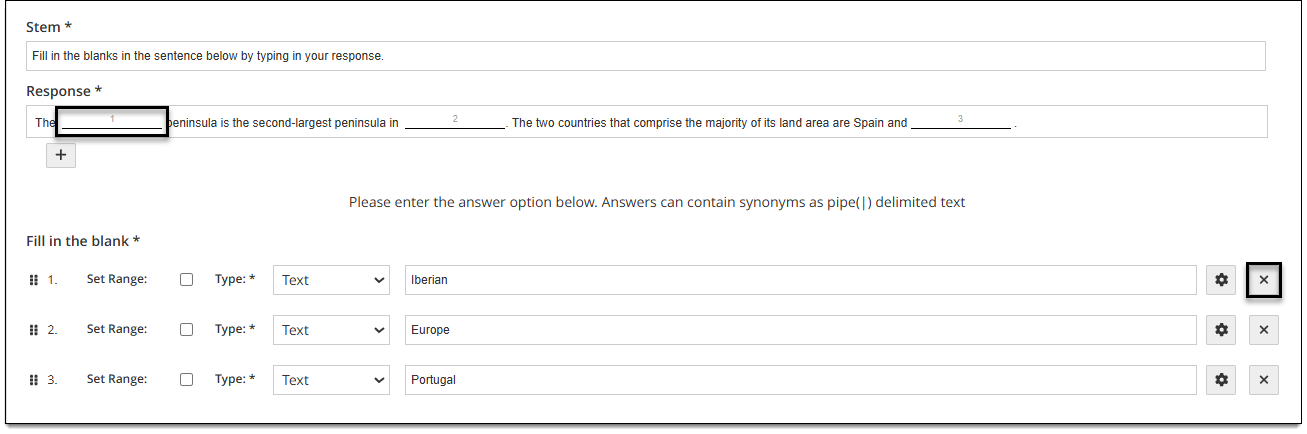
Reassign FIB responses
- To reassign FIB responses, click and drag the handles for the desired response option and move it up or down to correspond with the desired response field in the response text.
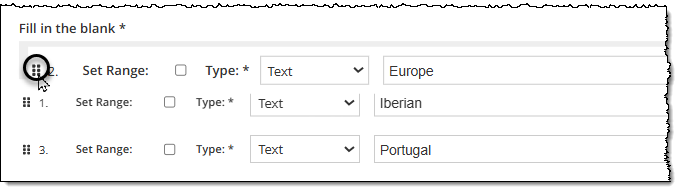
- Moving response options up or down changes the assigned correct responses. For example, if you move response 2 above response 1, response 2 becomes that correct answer for response field 1.
Additional options
See Author an item for a complete guide to item editing, including how to format text, add tables, insert images and media, apply metadata, select a blueprint area, etc.