Essay (item type)
Essay item types provide a prompt for an essay response. As an item author, you only add question content since candidates provide the response. However, essay items can be configured to score points for specific words or display initial responses that are specified by the item author. The item bank manager can configure various settings for the essay response area such as editing options, word or character counts, and minimum or maximum word/character requirements.
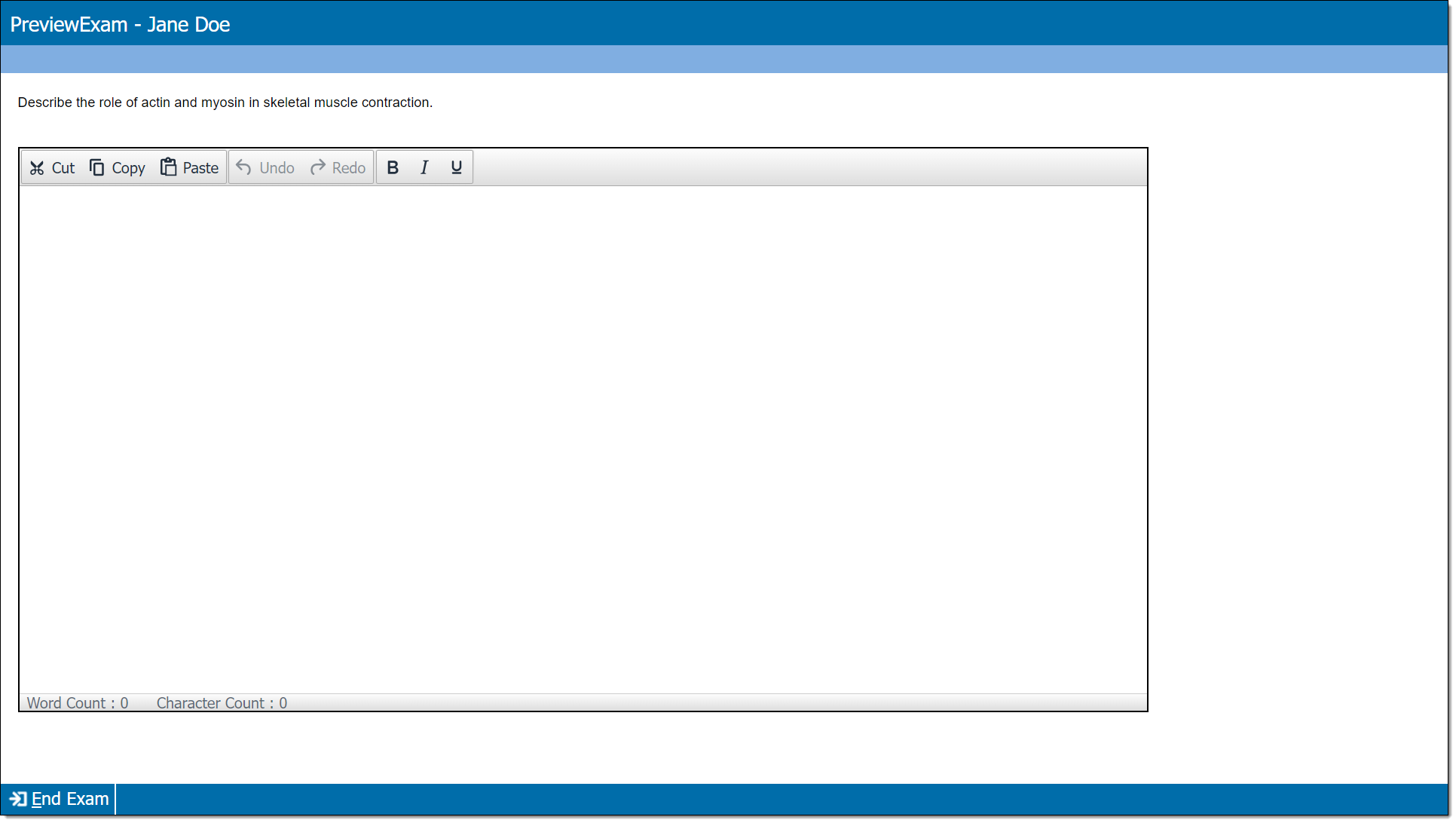
Add item content
|
*Note: Each content component may have a custom label. For example, a text component may be labeled as "Question" or "Stem", an essay response component (if configured) may be labeled as "Initial response, or a media component may be labeled as "Video" or "Audio". |
- In the Content component* field(s), enter text or upload the required media file type, depending on the item requirements. An essay item may include one or more text, media, and/or essay response components.
- For text components, you can format text or add tables, images, and equations.
 Some text components (such as stem and basic response options) can include variables or dynamic text. (These are not available for all item templates or text fields.)
- For media components, you will can only add the types of media configured for the item type (for example, you may be able to add audio files such as MP3, but not video files such as MP4).
- For response components, 'initial responses' can be added if enabled in the item template. The initial response text will be initially added to the candidate's essay response box during exam delivery, but candidates will be able to delete the text and add their own response.
- For text components, you can format text or add tables, images, and equations.
Add initial responses
|
|
- If initial responses are enabled for the template, you will see text boxes for responses where you can add an initial response. Variables cannot be added to Initial response fields.

- If initial responses are not enabled for the item template, you won't see text fields for responses. Instead, you'll see placeholder text that indicates "Essay response will appear here".

Add a correct response list
|
|
In the Correct response list field, enter words that will award points when included in the essay response.
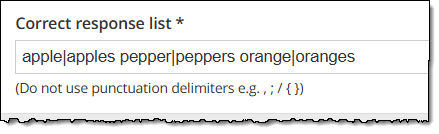
- Include a space in between each word that should award a point. Candidates will earn one point for each instance of the word in the correct response list. For example, if "apple" is in the correct response list once, and the candidate's response includes "apple" five times, only one point will be awarded. If "apple" is listed in the correct response list twice, that candidate would earn two points.
- Separate similar words with a pipe delimiter | to specify a set of words in which only one word from the set will award a point. (For example, "apple|apples" indicates that only one point will be awarded, even if both "apple" and "apples" are included in the response.)
- Do not use other punctuation marks such as commas or semicolons as delimiters.
Example
Consider the following correct response list:
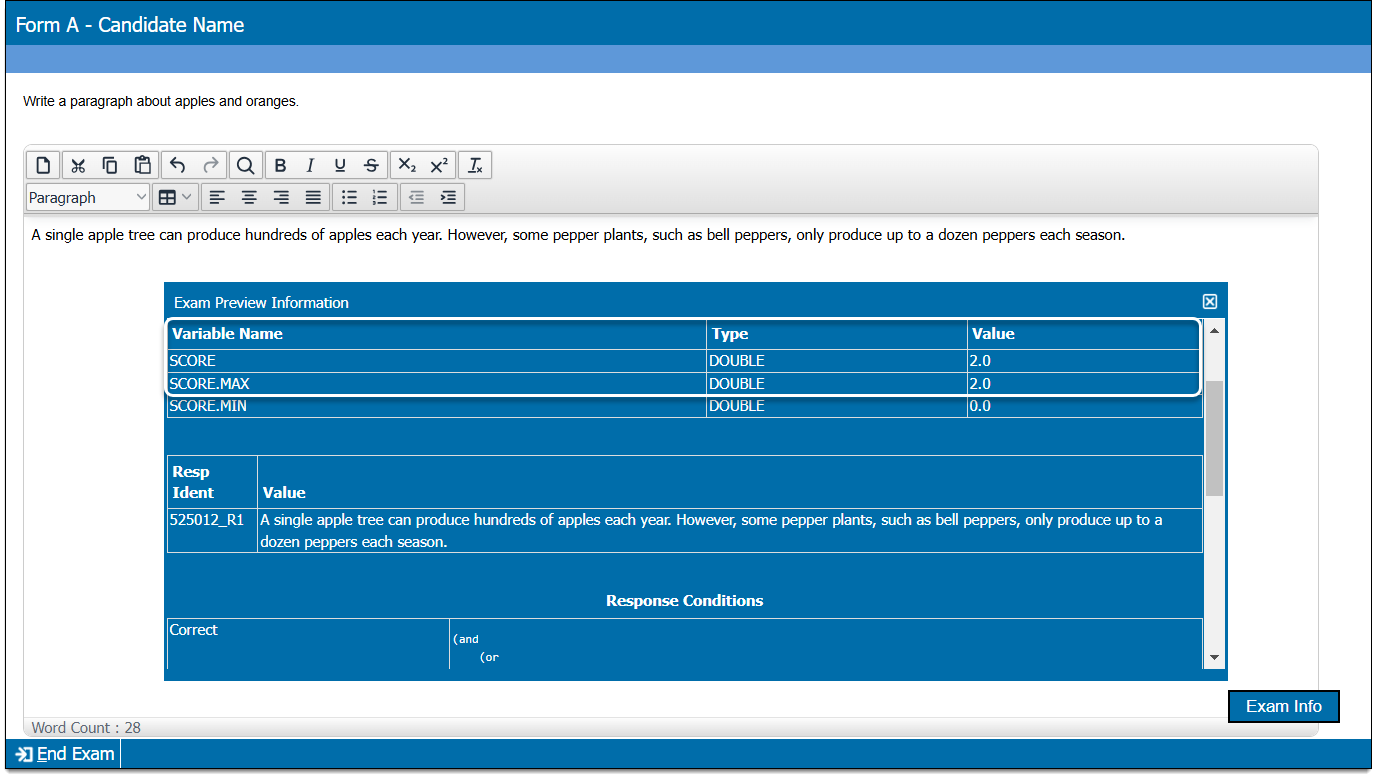
apple|apples pepper|peppers
The candidate's response is "A single apple tree can produce hundreds of apples each year. However, some pepper plants, such as bell peppers, only produce up to a dozen peppers each season." In this case, the candidate can only earn two points, even though the 'correct' words were used five times.
Additional notes
- Word recognition is case insensitive (e.g., if you capitalize a word in the list, the candidate will still earn a point if the word is included but not capitalized).
- Hyphenated words (e.g., "short-term") can be added to the correct response list, which would require the candidate to include the hyphen to earn the point. However, if the word is often spelled without a hyphen, consider whether or not that word should be scored. For example, if "short term" is in the correct response list, candidates can earn points for "short" and "term" separately, regardless of context or placement. On the other hand, if only "short-term" is included in the correct response list, candidates wouldn't earn any points for the words "short term".
Add custom response IDs
Custom response IDs help identify individual responses within Essay items that collect multiple responses from candidates.
|
|
- If custom response identifiers are enabled for the template, you will see a Response ID field next to each response field.
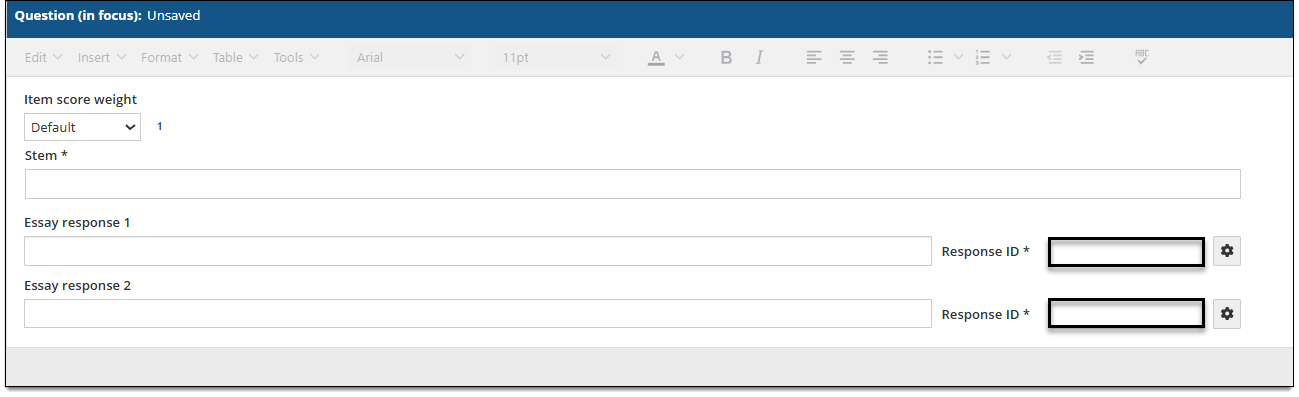
- Input an identifier containing letters (A-Z), numbers (0-9), hyphens, and/or underscores. No spaces or special characters are allowed.
- Once you save the item, the custom response ID will be used instead of a system-generated response ID.
Modify essay response properties
|
|
Depending on item configurations, you may be able to change the default essay response properties for the item such as the toolbar provided for the response field during exam delivery or word count configurations.
- Click the gear button located next to each response field.
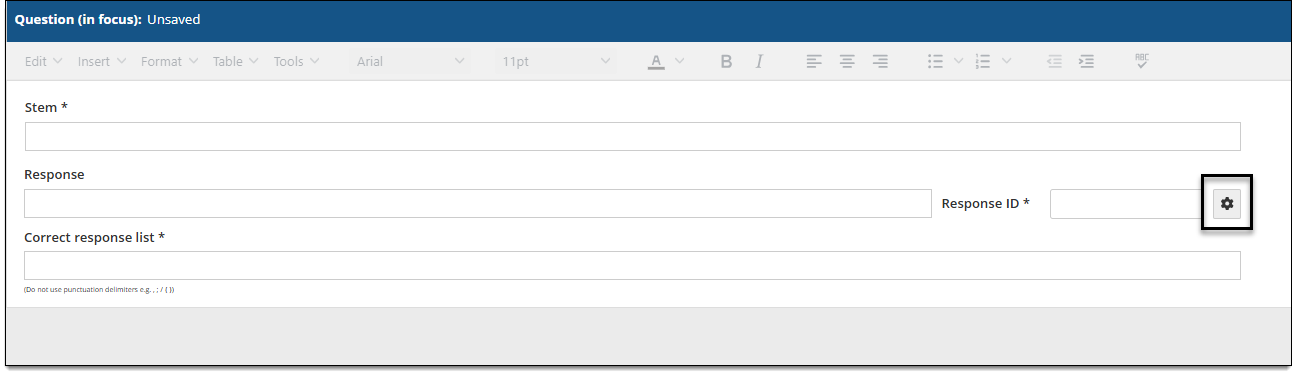
- If you don't see this button, it means the template does not allow the default response properties to be changed.
- The Essay response properties modal opens where you can edit the properties described below ↓.
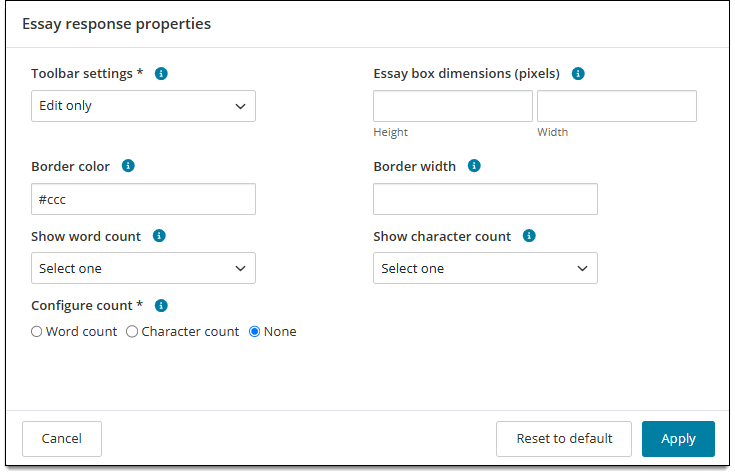
- Click Apply.
- To revert to the default properties before you made changes, click Reset to default.
Toolbar settings
- Style only: Only basic style options are provided in the toolbar (Bold, Italic, Underline).
- Edit and style: Both basic text style and text editing options are provided in the toolbar (Bold, Italic, Underline, Cut, Copy, Paste, Undo, Redo).
- Edit only: Only basic text editing options are provided in the toolbar (Cut, Copy, Paste, Undo, Redo).
- Advanced: All Edit and Style options are provided in the toolbar along with additional options such as tables, find and replace, heading styles, text alignment, bullet and numbered lists, and indent. Character count options cannot be used when the Advanced toolbar is selected.
- Advanced menu: All Advanced options are provided in the toolbar along with an additional top menu bar that provides text-based menu options (Edit, Insert, Format Tools, Table).
- None: No toolbar is provided with the essay response field. Text can only be added or deleted.
Essay box dimensions
Specify the essay box height and width in pixels.
Border color
Specify a different color for the border around the essay box if desired. (Color value is a hexadecimal and defaults to #ccc.)
Border width
Specify the width of the border around the essay box in pixels.
Show word count
Specify if the number of words currently typed in the respond field is shown to the candidate during exam delivery. The word count is displayed below the essay response box.
- Yes: Word count is shown during exam delivery.
- No: Word count will not be shown during exam delivery.
Show character count
Specify if the number of characters currently typed in the respond field is shown to the candidate during exam delivery. The character count is displayed below the essay response box.
- Yes: Character count is shown during exam delivery.
- No: Character count will not be shown during exam delivery.
Configure count
Sets a minimum requirement or maximum allowance on either word or character count. For example, you might require that candidates must type at least 25 words in an essay response. You cannot set rules for both words and characters at the same time.
- Operator: Select which type of requirement or allowance you want to set (greater than, less than, etc.).
- Value: Type the specific number of words or characters that will be required or allowed.
Set item weight
Depending on the template settings, you may be able to set a different weight for the item.
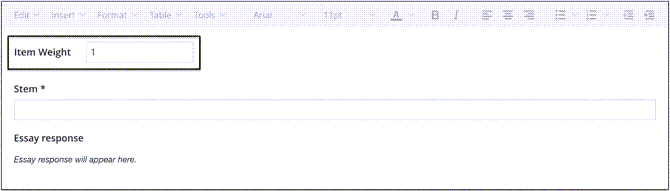
- If the template allows you to edit the Item Weight field, input a value other than 1. Any decimal value between 0.001 and 9999 is accepted, with a maximum of four characters including the decimal point. This changes the total point value for the item. For example, if you input "2", the candidate would earn 2 points for a correct response. Any decimal value between 0.001 and 9999 is accepted, with a maximum of four characters including the decimal point.
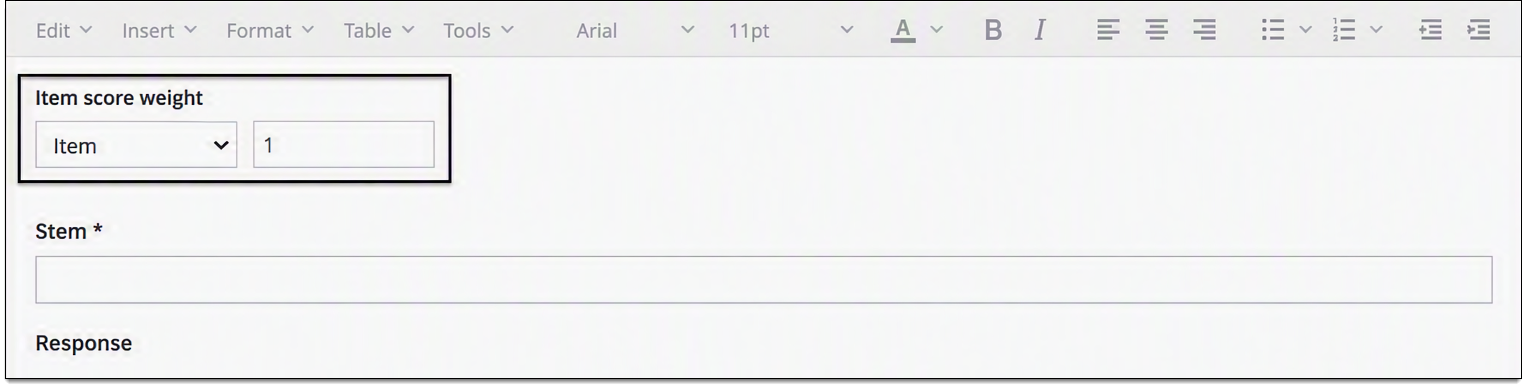
- If the template allows you to edit the Item score weight field, click the drop-down and select Item. Then input a value other than 1. This changes the total point value for an externally scored item. Any decimal value between 0.001 and 9999 is accepted, with a maximum of four characters including the decimal point.
How the item is scored
Scoring depends on the configurations defined in the item type template.
- No scoring means there is no correct or incorrect answer. This scoring model is used for items such as survey questions or pretest items.
- External scoring is manual scoring, evaluated by a human. No scoring is applied at the time of exam delivery and no response processing is exported with the QTI. This is not the same as "No scoring" since the item will be scored, just not at the time of exam delivery. You can also set a different weight for the item.
- With Polytomous - Unique word list matching, candidates will earn one point for each instance of a word designated in the correct response list ↑
- With Dichotomous - Unique word list matching, candidates will only earn the allotted points for the item if all words designated in the correct response list ↑ are used in their response. Depending on the item template configurations, you may be able to set a different weight for the item.
Additional options
See Author an item for a complete guide to item editing, including how to format text, add tables, insert images and media, apply metadata, select a blueprint area, etc.