Drop-down (item type)
Drop down item types display content with one or more drop-down menus embedded in a text passage. The candidate must select correct responses from all of the drop-down menus to obtain a correct response (dichotomous scoring). Or, the item can be configured to score points for correct responses and no points for incorrect responses (multiple option sum scoring).
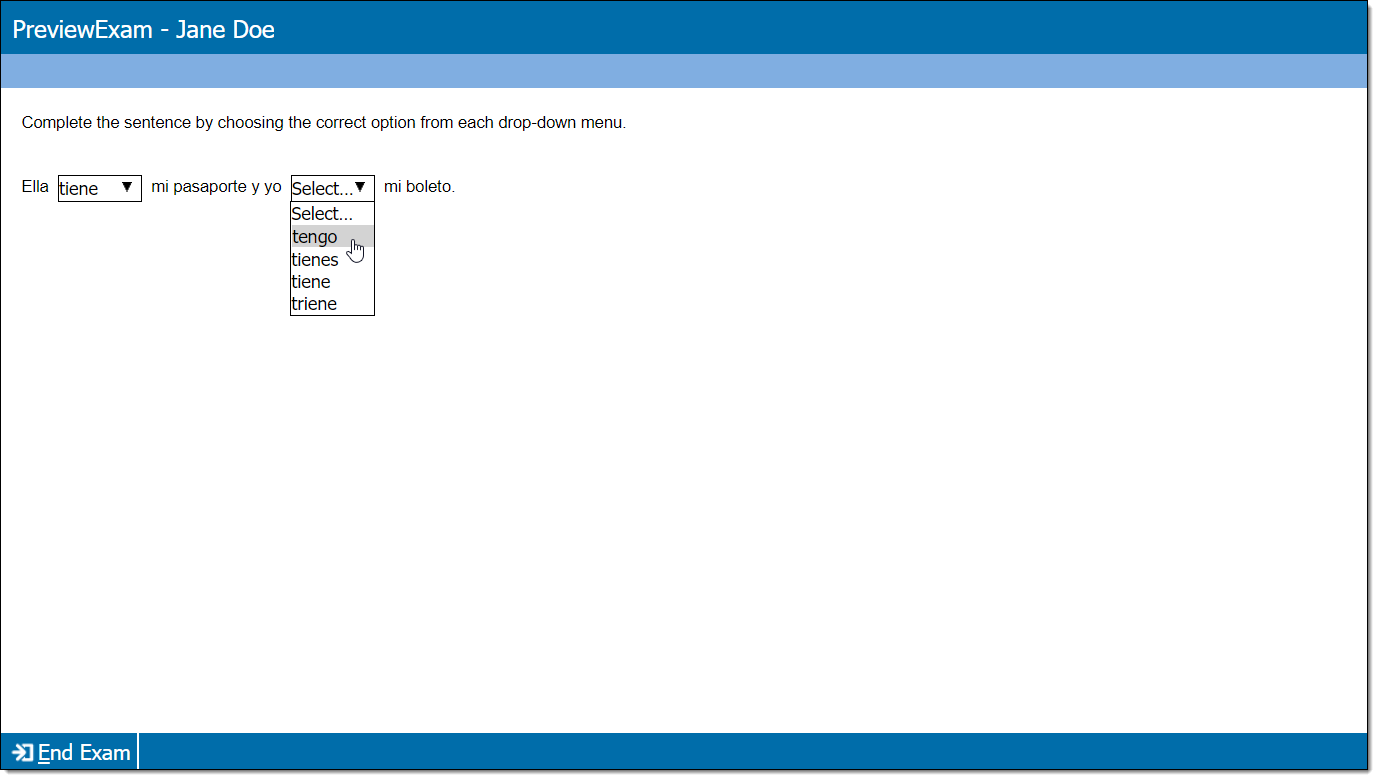
Add item content
|
*Note: Each content component (the stem or question) contains either text or media and may have a custom label. For example, a text component may be labeled as "Question" or "Stem", and a media component may be labeled as "Media", "Video", or "Audio". |
- In the Content component* field(s), enter text or upload the required media file type, depending on the item requirements.
- For text components, you can format text or add tables, images, and equations.
- If configured for your project, some text components (such as stem and basic response options) can include variables or dynamic text. (These are not available for all item templates or text fields.) View unsupported item typesView unsupported item types
Variables not supported for:
- Display
- External QTI
- Selectable text
- Audio capture
- Audio capture with video
- Some custom templates (depends on configurations)
Dynamic text not supported for:
- Audio capture
- Audio capture with video
- Selectable text
- Some custom templates (depends on configurations)
- If configured for your project, some text components (such as stem and basic response options) can include variables or dynamic text. (These are not available for all item templates or text fields.) View unsupported item typesView unsupported item types
- For media components, you will only be able to add the types of media configured for the item type (for example, you may be able to add audio files such as MP3, but not video files such as MP4).
- For text components, you can format text or add tables, images, and equations.
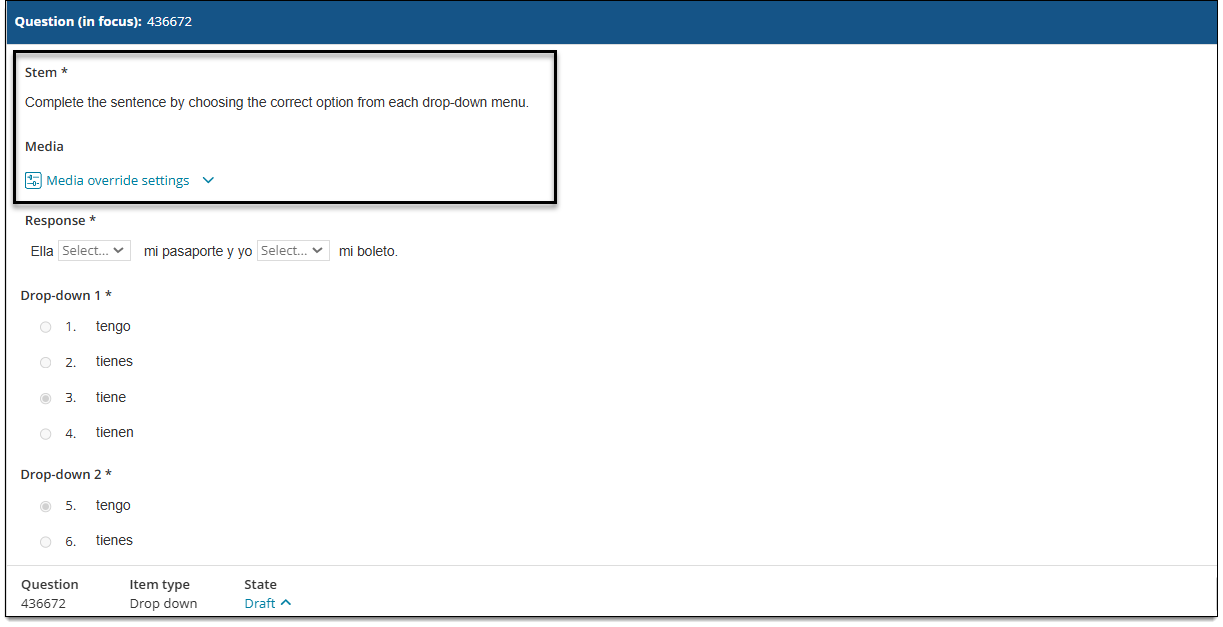
Add the response passage and options
- In the Response passage, begin typing the text you wish to add (such as a sentence, phrase, or paragraph).
 In addition to text, you can also add elements such as tables, special characters, images, and/or variables (if configured for the project).
- When you arrive at the position where the candidate must select a response, click the Add
 button below the passage.
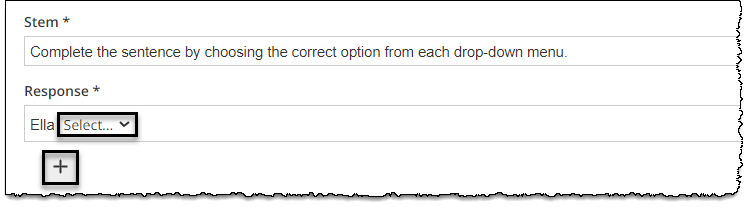
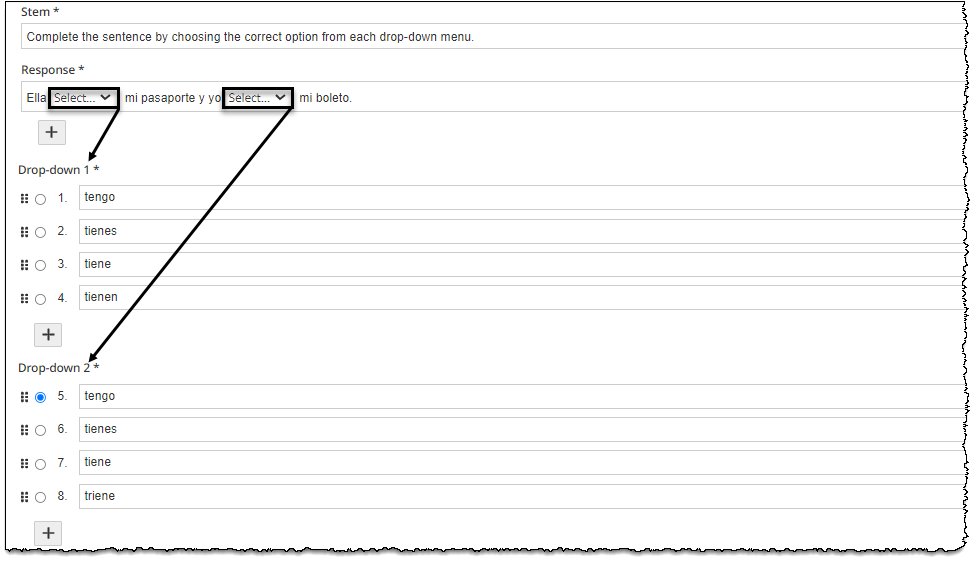
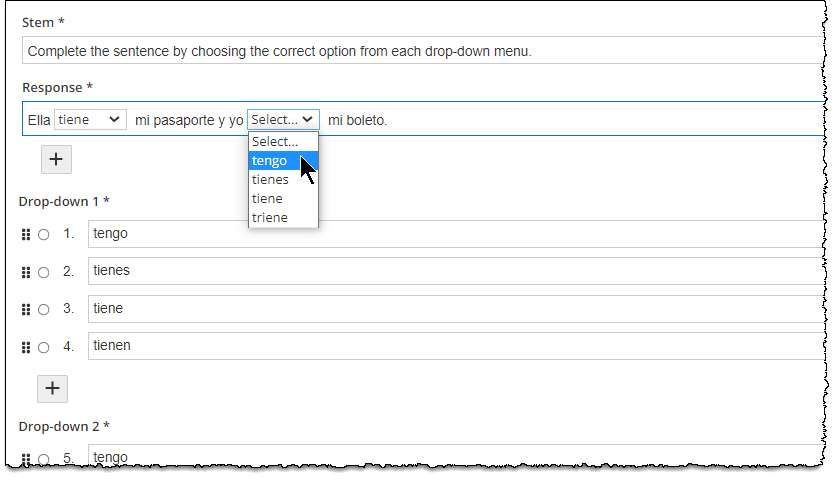
- Each time you add a drop-down, a blank Drop-down response list is added below the Response passage.
- Input response options for each drop-menu in these lists.
- Drop-down option lists are numbered in order from left to right. (The first drop-down that appears in the Response passage is Drop-down 1, the second is Drop-down 2, etc.)
- Variables and dynamic text cannot be added to drop-down response options; however, they can be added to the stem/question.
- Drop-down option lists are numbered in order from left to right. (The first drop-down that appears in the Response passage is Drop-down 1, the second is Drop-down 2, etc.)
Remove response options
- To remove a response option, place your cursor in the Response text passage just after the drop-down menu that you want to delete.
- Press Backspace or Delete on your keyboard. The corresponding list of drop-down options should disappear.
Select the correct responses
- In each Drop-down response list, select the correct option.
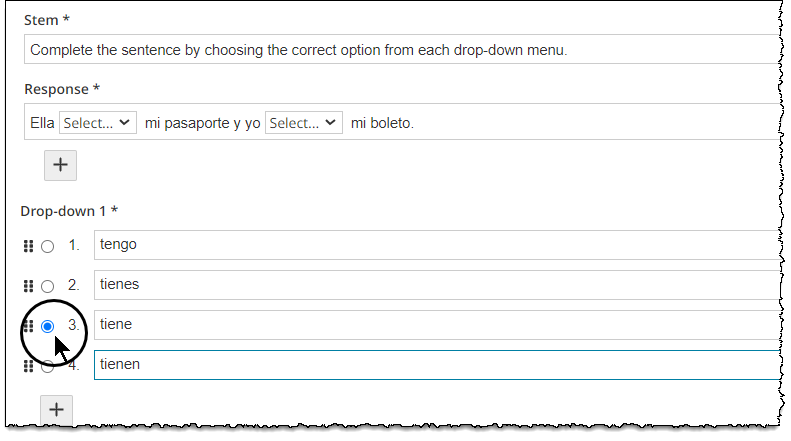
Set item weight
|
|
- If the template allows you to edit the Item Weight field, input a value other than 1. Any decimal value between 0.001 and 9999 is accepted, with a maximum of four characters including the decimal point.
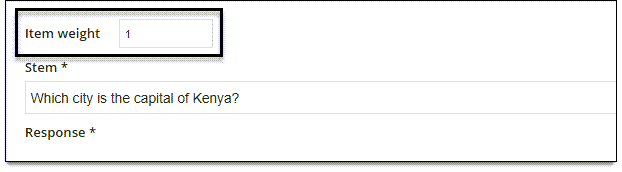
- The total point value for the item is set (once you save the item). For example, if you input "2", the candidate will earn 2 points when the correct response is submitted during exam delivery.
How the item is scored
Scoring rules are defined in the item type template by the item bank manager.
- With Dichotomous scoring, the candidate must type correct responses in all of the blank fields to score the item correctly. Depending on the item template configurations, you may be able to set a different weight for the item.
- With Multiple option sum scoring, each individual response field is scored independently (correct responses earn points and incorrect responses do not earn points).
- No scoring means there is no correct or incorrect answer; this scoring model is used for items such as survey questions or pretest items.
Additional options
See Author an item for a complete guide to item editing, including how to format text, add tables, insert images and media, apply metadata, select a blueprint area, etc.