Drag and drop (item type)
Drag and drop item types display content with a set of tokens and corresponding targets. The candidate must drag and drop the correct token to each target. Tokens are individual content boxes that must be placed over the correct targets. A single target may have one or multiple matching tokens. Candidates may be required to place all tokens correctly to earn a point for the item, or points can be awarded based on the number of correctly placed tokens.
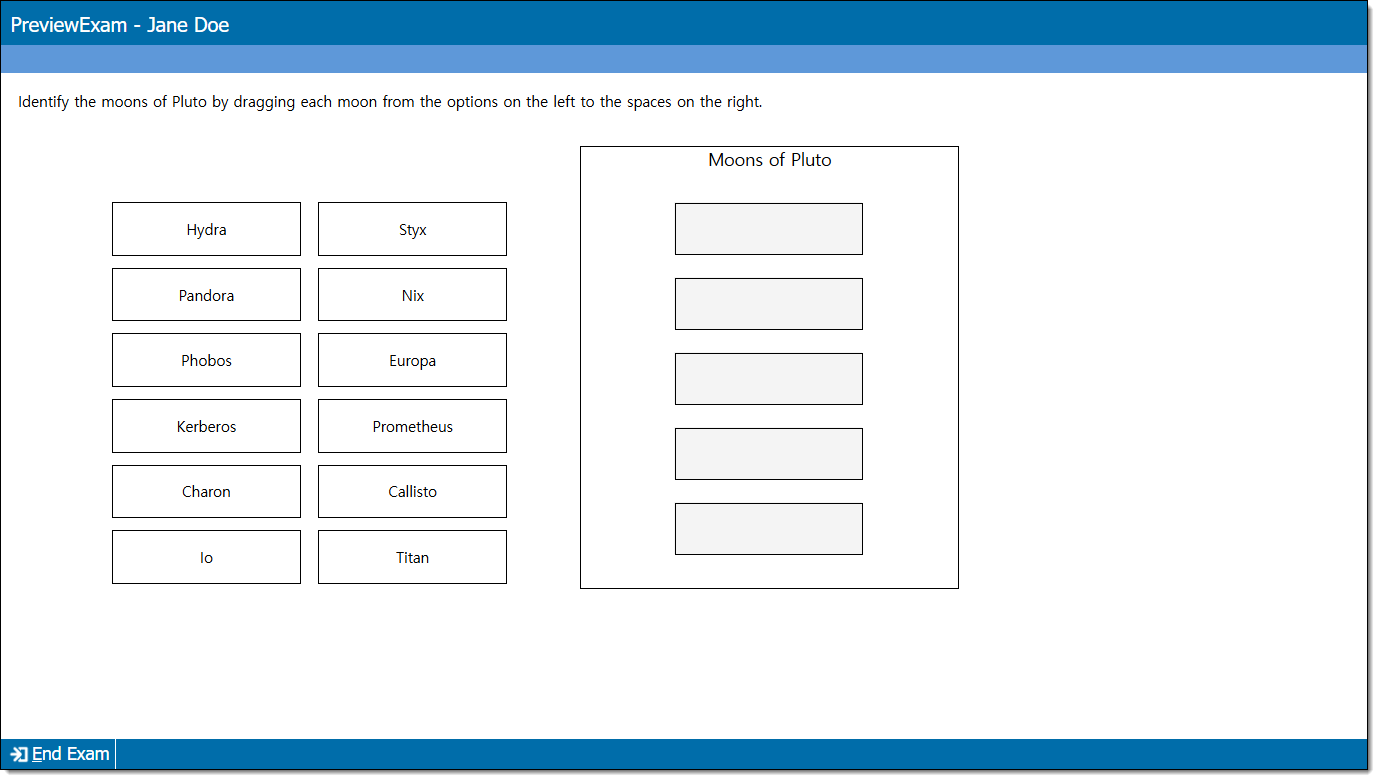
Add item content
|
*Note: Each content component (the stem or question) contains either text or media and may have a custom label. For example, a text component may be labeled as "Question" or "Stem", and a media component may be labeled as "Media", "Video", or "Audio". |
- In the Content component* field(s), enter text or upload the required media file type, depending on the item requirements.
- For text components, you can format text or add tables, images, and equations.
- If configured for your project, some text components (such as stem and basic response options) can include variables or dynamic text. (These are not available for all item templates or text fields.) View unsupported item typesView unsupported item types
Variables not supported for:
- Display
- External QTI
- Selectable text
- Audio capture
- Audio capture with video
- Some custom templates (depends on configurations)
Dynamic text not supported for:
- Audio capture
- Audio capture with video
- Selectable text
- Some custom templates (depends on configurations)
- If configured for your project, some text components (such as stem and basic response options) can include variables or dynamic text. (These are not available for all item templates or text fields.) View unsupported item typesView unsupported item types
- For media components, you will only be able to add the types of media configured for the item type (for example, you may be able to add audio files such as MP3, but not video files such as MP4).
- For text components, you can format text or add tables, images, and equations.
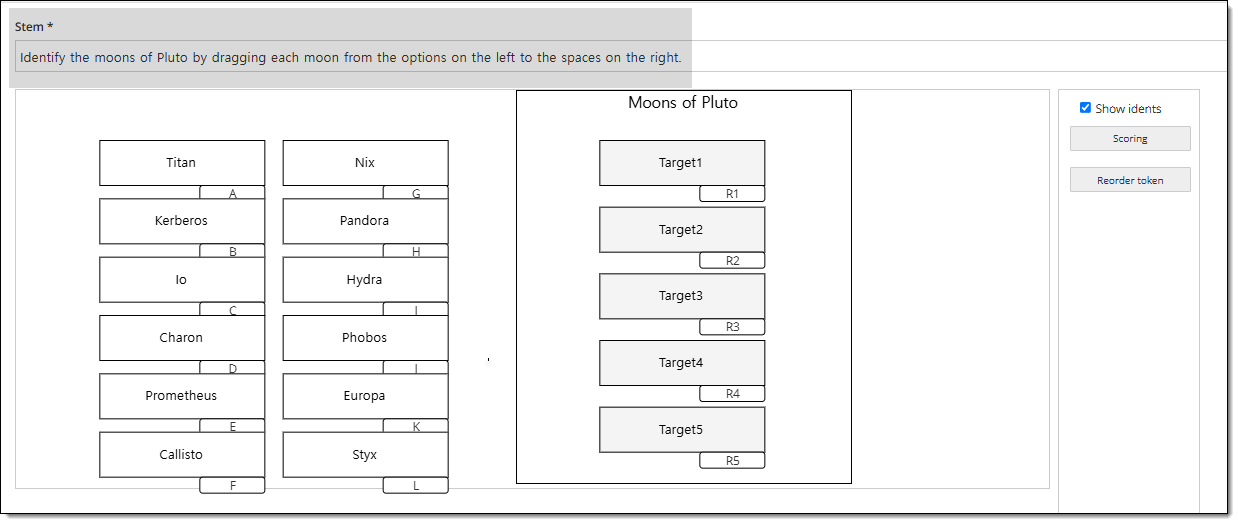
Edit target, token, and label text
- Click inside a token, target, or label to edit the text. (If you have access to the layout editor options in the right panel, you must click Edit content before you can edit text.)

 During exam delivery, candidates can only move tokens to targets. They cannot move targets.
 - Labels are used to visually group targets and/or tokens together. They are optional and may not be included in the item template you are working with.
- Variables and dynamic text cannot be added to token or target labels; however, they can be added to the stem/question.
- Apply basic text formatting as needed.
- Depending on the item template settings, you may also be able to add or remove tokens, targets, and labels. Refer to Use the Drag and drop layout editor for more information.
Edit object properties and layout (Layout editor)
|
|
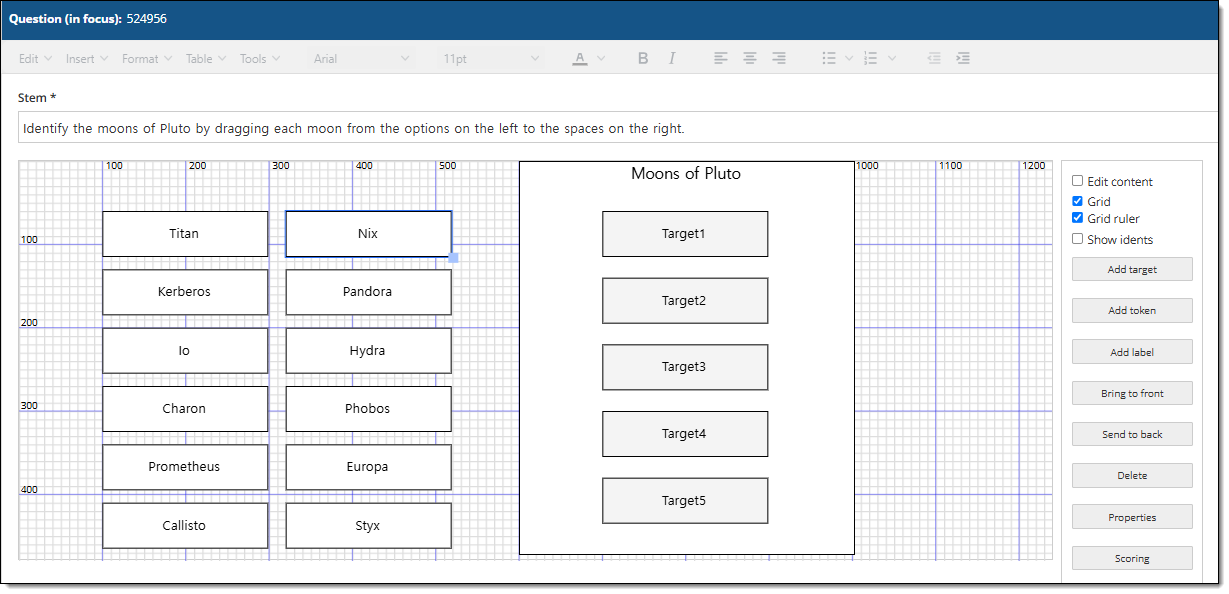
The layout editor allows authors and reviewers to access options such as customizing token, target, and label properties, or using and adjusting the item layout grid. Refer to Use the Drag and drop layout editor for more information.
Set score
- Click the Scoring button in the right panel. The Scoring window opens with two or three tabs, depending on the template.
Choose a scoring rule
|
|
- Depending on the template settings, you may see a Scoring rules tab:
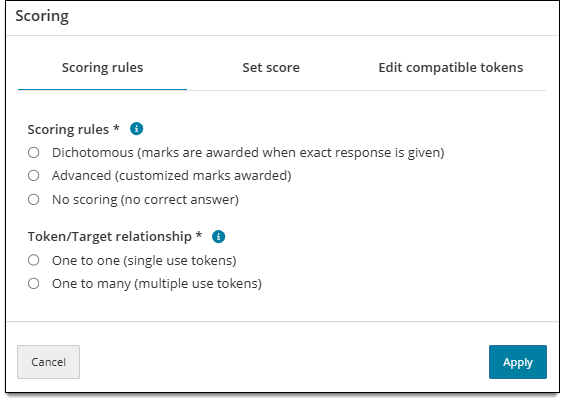
- Choose one of the following Scoring rules:
- Dichotomous: The candidate must drag and drop all correct tokens to all targets to earn a correct score for the item. If any token-target match is missing or incorrect, no points will be given for the item.
- If the template shows an editable Default weight field, you can input a value other than 1. This changes the total point value for the item. For example, if you input "2", the candidate would earn 2 points for a correct response. Any decimal value between 0.001 and 9999 is accepted, with a maximum of four characters including the decimal point.
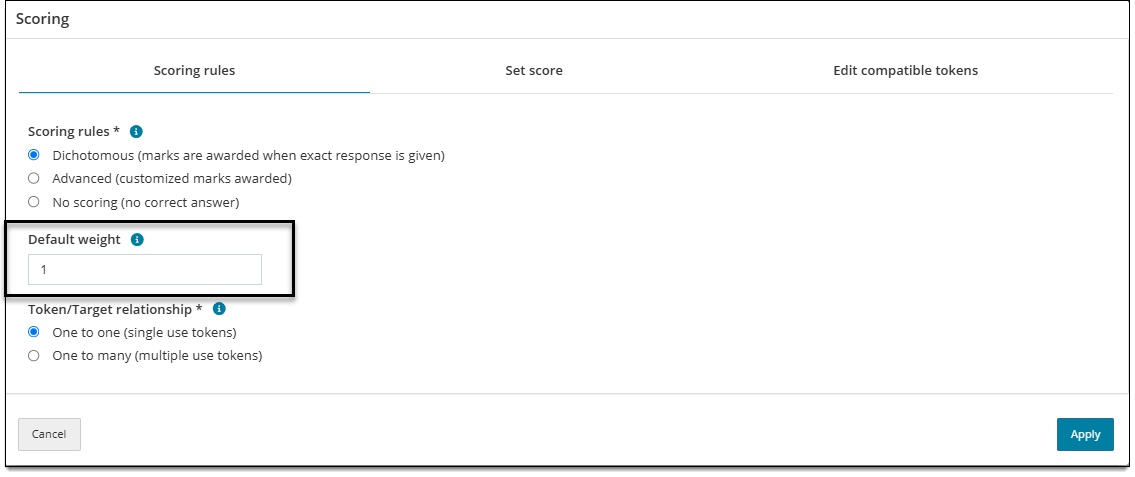
- If the template shows an editable Default weight field, you can input a value other than 1. This changes the total point value for the item. For example, if you input "2", the candidate would earn 2 points for a correct response. Any decimal value between 0.001 and 9999 is accepted, with a maximum of four characters including the decimal point.
- Advanced: Each individual response (target) is scored independently. If Advanced is selected, Score total options must also be selected (see next row for details).
- No scoring: There is no 'correct' or 'incorrect' response. This scoring model is used for items such as survey questions or pretest items.
- Dichotomous: The candidate must drag and drop all correct tokens to all targets to earn a correct score for the item. If any token-target match is missing or incorrect, no points will be given for the item.
- If you chose Advanced for the scoring rule, select a Score total.
- Aggregate scoring: Adds a specified value for each correct response to the sum total score of the item. The maximum score for the item is the sum of score values possible across all targets.
- Conditional scoring: Scores points for only specific targets or a combination of targets, depending on the rules defined for the item. The maximum score is based on either the target with the highest score value, or the last added target combination if Combination scoring is used.
- Choose the Token/Target relationship (specifies whether targets can be matched with more than one token or if only one token can be matched to each target).
- One to one (single use tokens): Each target can only be matched with one token. Once the candidate drags a token to a target, there are no more copies of that token available. It can only be dragged to a different target if the target is empty.
- One to many (multiple use tokens): Each target can be matched with multiple tokens. When the candidate drags a token to a target, more copies of the same token remain and can be matched to other targets.
Assign tokens to targets
- Click the Set score tab, if needed (this tab may display by default).
- If Conditional or Aggregate score totals are configured for the item, you can hover over the Configured scoring rules icon
 to review which scoring settings to follow, including the scoring rule, score totals, and token/target relationship ("one to one" or "one to many").
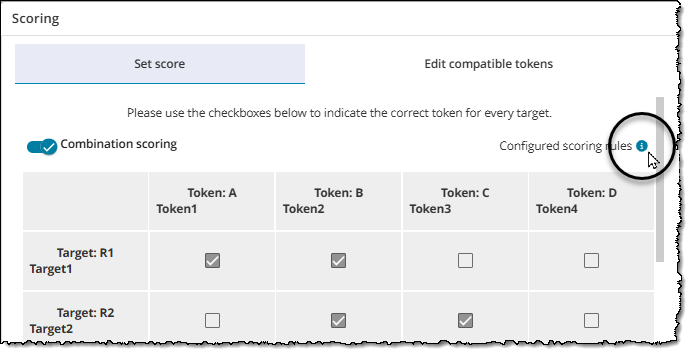
- If you do not see this icon, this indicates that the Dichotomous scoring rule is set for the item. For each target, all of the specified matching tokens and none of the unmatched tokens must be selected for test takers to earn the point for the item.
- For each target, select the checkbox for each token that should be matched to the target.
- If the Token/Target relationship is "one to one", select only one token per target. Each token can only be matched to one target.
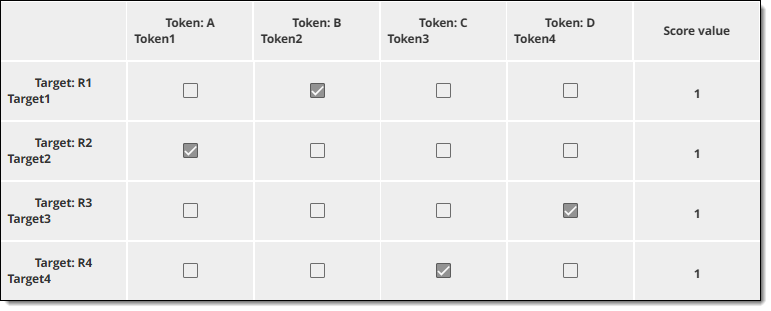
- If the Token/Target relationship is "one to many", you may select multiple tokens per target. Each token can be matched to more than one target.
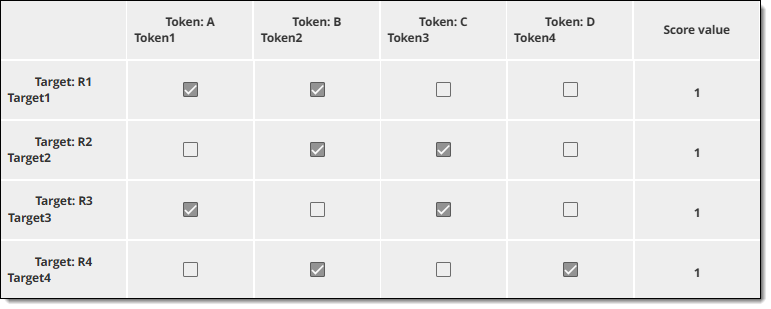
- If the Token/Target relationship is "one to many" and the order of the token placement does not matter (for example, the candidate can drag the correct tokens to any target) - make sure to select all of the targets as options for each correct token.
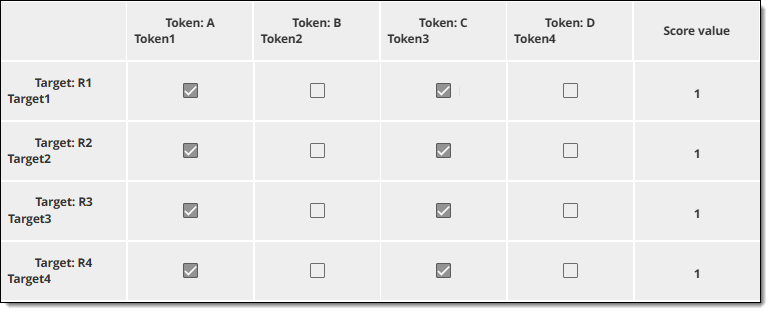
- If the Token/Target relationship is "one to one", select only one token per target. Each token can only be matched to one target.
- Click Apply to save your changes.
Set score value for targets
Specify a score value for each target. (To assign score values to combinations of targets, use Combination scoring instead.)
|
|
- Click inside the Score value column for each target. Enter a whole number to indicate the number of points to award if at least one of the correct tokens is matched to the target.
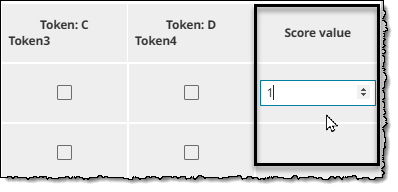
- Any correct token for a target will award the score value, even if the token to target relationship is "one to many". For example, if Target 1 has a score value or 2 and correctly matches to Token A and Token B, a candidate will still be awarded 2 points if they only match Token A. But if they match Target 1 to Token A and Token C, they will not earn any points because an incorrect token (Token C) was also matched.
- The total number of points awarded for the item depends on which scoring total rule is configured for the item type:
- Aggregate: the candidate will accumulate points for each target where at least one correct token and no incorrect tokens are matched.
- Conditional: the candidate is awarded points for only one target (the highest point value target) for which at least one correct token and no incorrect tokens are matched to the target.
- The total number of points awarded for the item depends on which scoring total rule is configured for the item type:
- Click Apply to save your changes.
Set combination scoring
Specify a score value for combinations of correctly answered targets. The candidate can be awarded points for only the specified target combinations. (If you want to assign score values to single targets, use single target score values instead.)
|
|
- Click the Set combination scoring switch to display the options. This will remove any individual score values set for each target.
- In the Target combination column, click the drop-down menu and select one or more targets to create a combination.
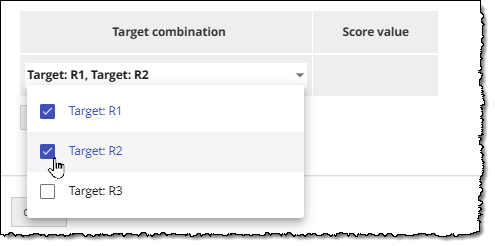
- Click inside the adjacent cell in the Score value column and enter a whole number to indicate the number of points to be awarded if all targets in the combination are answered correctly
- To add more combinations, click the plus
 and repeat steps 2 and 3.
- For aggregate scoring, each correctly answered combination will add to the candidate's total score. For example, if the combination of Target 1 and Target 2 is worth 5 points, and the combination of Target 2 and Target 3 is worth 6 points, the candidate can earn up to 11 points if both combinations are answered correctly.
- For conditional scoring, the last combination added in the list will take priority when calculating the candidate's final response. For example, if the combination of Target 1 and Target 2 is worth 10 points and the combination of Target 3 and Target 4 is worth 5 points, the candidate will only earn 5 points if both combinations are answered correctly. This is because the combination of Targets 3 and 4 was added last and appears at the bottom of the Target combination list.
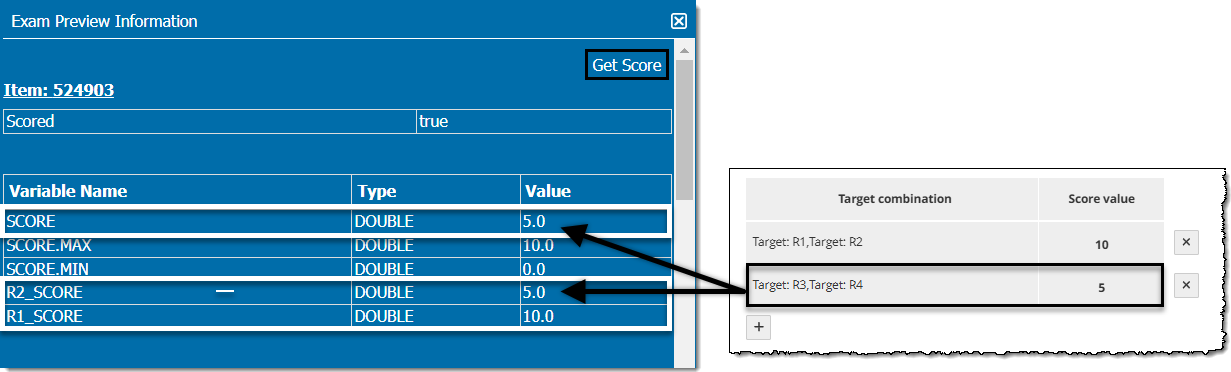
- Click Apply to save your changes.
How the item is scored
Scoring rules and token/target relationships for the item type are set by the item bank manager in the item type template.
Scoring rules
- With Dichotomous scoring, the candidate must drag and drop all of the correct tokens on all of the targets to earn a correct score for the item. If any token/target match is missing or incorrect, no points will be given for the item.
- With Advanced scoring, each individual response field (target) is scored independently. Aggregate scoring adds a specified value for each correct response to the sum total score of the item. The maximum score for the item is equal to the sum of individual score values of all the targets. Conditional scoring awards value for only specific targets or a combination of targets, depending on the scoring defined for the item. The maximum score is either based on the target with the highest score value, or the last added target combination if Combination scoring is used.
- No scoring means there is no correct or incorrect answer; this scoring model is used for items such as survey questions or pretest items.
Token/target relationships:
- With One to one relationships, each target can only be matched with one token (tokens are single use). Once the candidate drags a token to a target, there are no more copies of that token available. It can only be dragged to a different target if the target is empty.
- With One to many relationships, each target can be matched with multiple tokens (tokens are multi-use). When the candidate drags a token to a target, copies of the same token remain and can be matched to other targets.
Edit compatible tokens
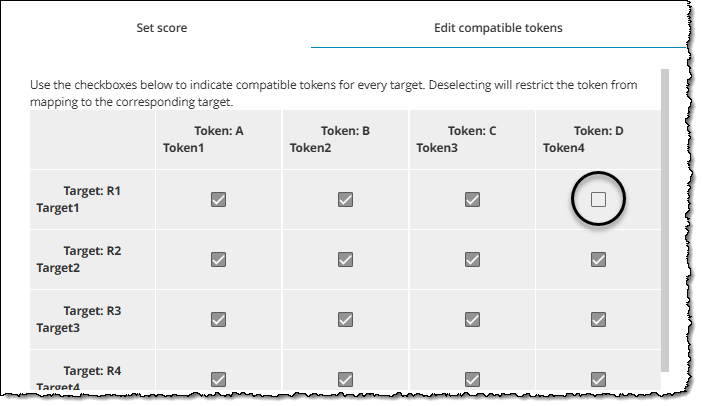
Compatible tokens are used to prevent certain tokens from being placed onto certain targets. If a candidate attempts to place an incompatible token over a target, the token will automatically move back to its starting location when the candidate releases the mouse after dragging and dropping the token over the target. Use case exampleUse case example
If you just want candidates to identify the seven continents of the world you could simply provide seven targets and allow the tokens with the names of each continent to be dragged to any target. However, if you want to match countries with specific demographics to each continent, you will likely have a larger number of tokens that you could group and restrict by continent using compatible tokens. For example, you could prevent tokens with countries in the Africa group from being matched to targets in the Asia group.
By default, either all tokens are compatible with all targets (each token can be matched to any target) or an item bank manager may define specific default compatible tokens for the item. Authors can change the compatible tokens if needed.
- Click the Scoring button in the right panel. The Scoring window opens to the Set score tab.
- Click the Edit compatible tokens tab.
- To remove compatibility from a token/target pair, deselect the checkbox in the target's row and token's column. This will restrict the token from being matched to that target. For example, if you deselect the checkbox for Target 1 and Token 4, candidates will not be able to match Token 4 to Target 1.
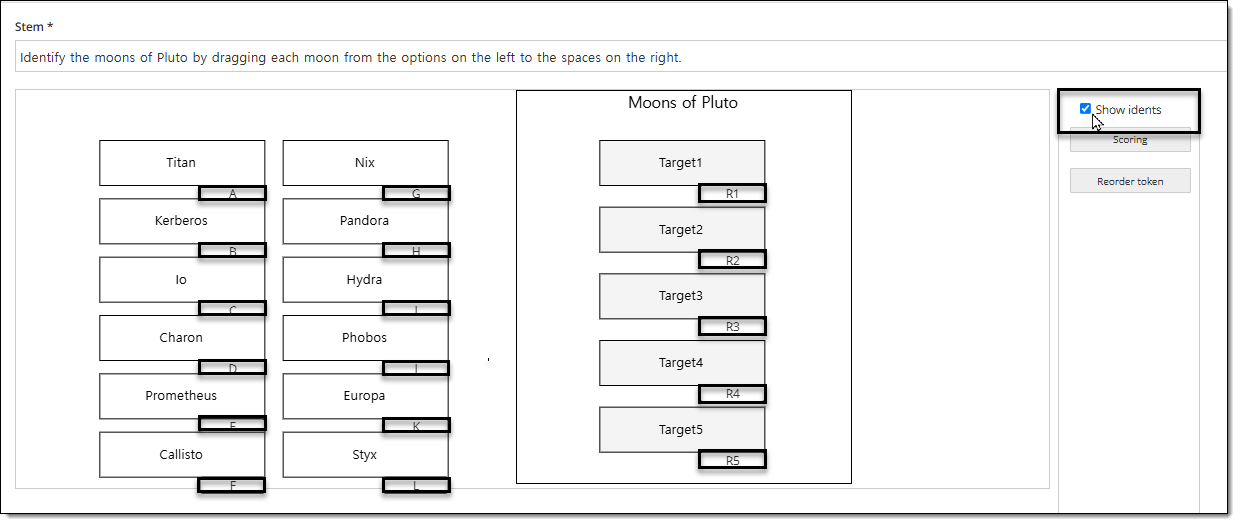
Show idents
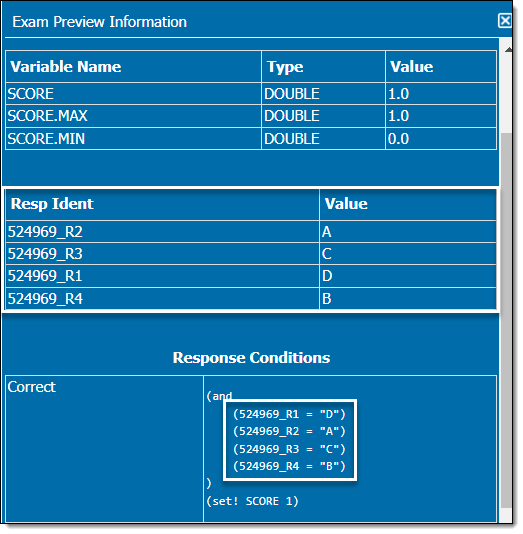
Show or hide the idents for the response options (tokens) and response fields (targets). These idents are exported in the exam QTI and also used in the Exam Info window of the item preview when testing the scoring settings for the item. Idents are not displayed to candidates during exam delivery.
- In the right panel, select the Show idents checkbox.
- A tab is added to the bottom-right corner of each token and target. This can help you identify individual tokens and targets when configuring or previewing the scoring.
Note: Token idents are displayed as a "Value" in the Exam Info window of the item preview. Target idents are displayed as a "Resp_Ident" in the Exam Info window of the item preview.
Reorder tokens
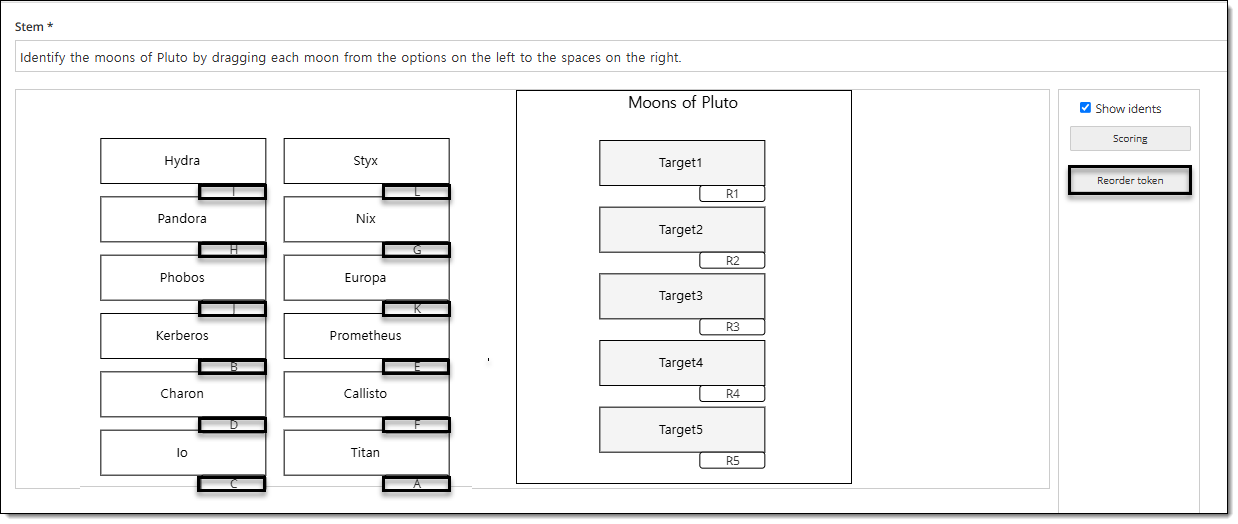
- Randomly shuffle the order in which tokens are displayed with a single click.
- In the right panel, click the Reorder token button.
- This randomly shuffles the order in which the tokens will be displayed. You can click the Reorder token button as many times as needed until the desired order is displayed.
Additional item options
See Author an item for a complete guide to item editing, including how to format text, add tables, insert images and media, apply metadata, select a blueprint area, etc.