Metadata
Metadata is used to group, tag, or classify items in ExamDeveloper. You can add metadata fields from your ExamDeveloper project to Item Assist. This will enable authors to guide Item Assist in generating relevant item content by specifying metadata criteria, such as subject categories or cognitive levels.
 Metadata is one type of authoring prompt (fields presented to the authors when they are generating items with Item Assist). (Additional author prompts are another type of authoring prompt configured separately from metadata.)
We recommended starting out with the metadata configurations listed below. Click the links for instructions:
Add metadata to Item Assist
The steps below describe how to set up the metadata prompts that will be presented to authors when they are generating items with Item Assist.
|
If you don't add the metadata placeholder to the content generation prompt, Item Assist will not have access to the metadata and cannot generate items based on the metadata, even if the author specifies the metadata when generating items. |
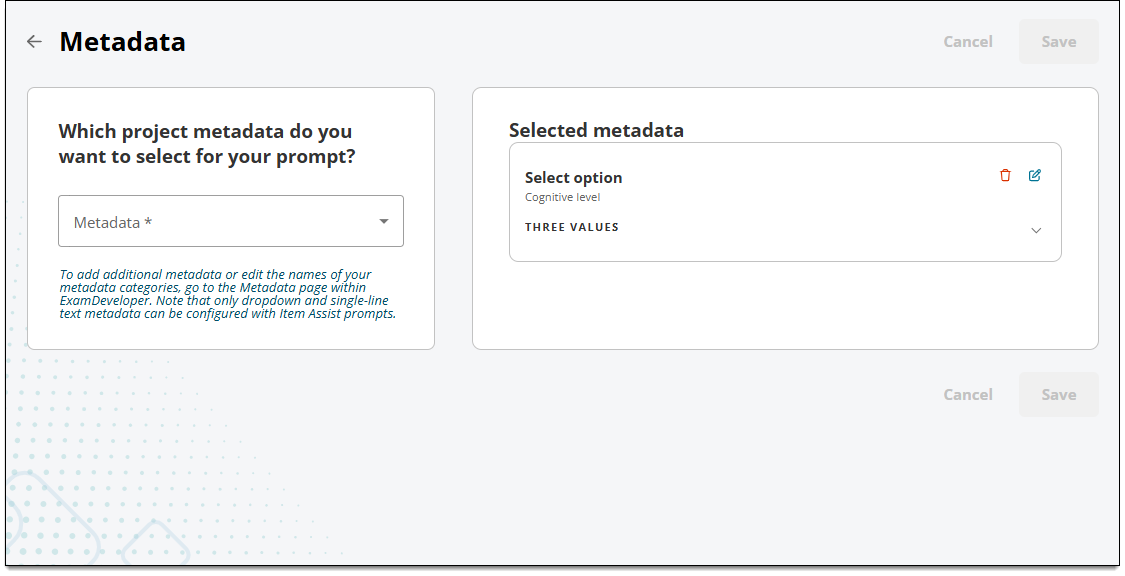
- Click Metadata on the Item Assist home page.
- In the left panel, click the Metadata drop-down and select an option.
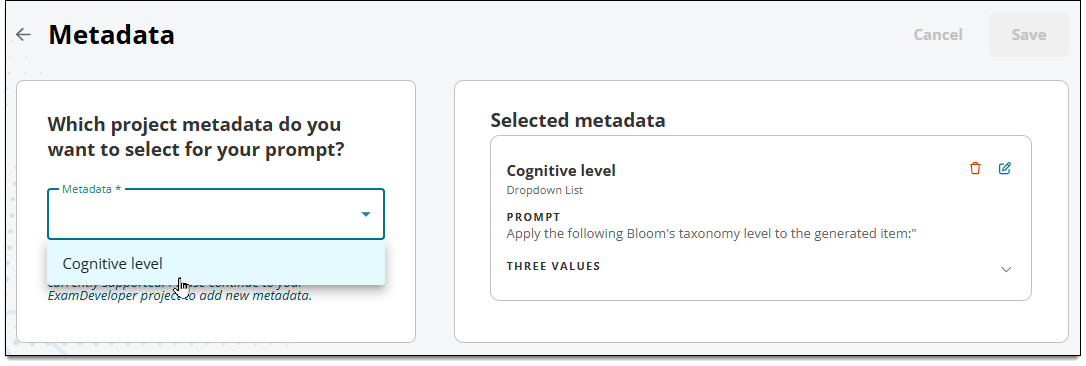
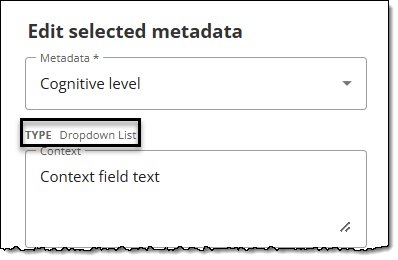
- Take note if the metadata you selected is Dropdown list or Single-Line Text. This will give you an idea of what details should be included in the remaining fields. For example, if it's a dropdown list, you will add prompt instructions for each of its drop-down options.
- In the Context field, input contextual information that will be available to authors. Context is not sent to Item Assist; it is simply used to help authors understand the goal of each metadata.
- Example: "Select your desired cognitive level."
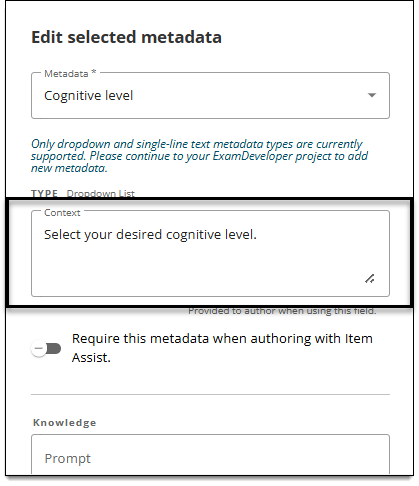
- The text you provide will appear as a tooltip in the Item Assist authoring prompt when authors hover over the Context field label.
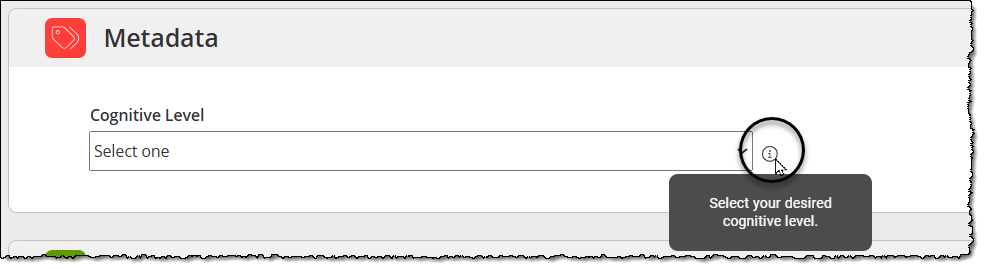
- Example: "Select your desired cognitive level."
- (Optional) Select Require this metadata when authoring with Item Assist if you want to require authors to apply the metadata before generating items.
- If the metadata is a dropdown list, input specific instructions for each dropdown option in the corresponding Prompt fields. These instructions will be used by Item Assist to generate items. (The content of these metadata prompts is not visible to authors.) For example, if each metadata option is a different cognitive level, you might discuss the degree of complexity for each cognitive level and/or provide sample stems in the Prompt field for each option.
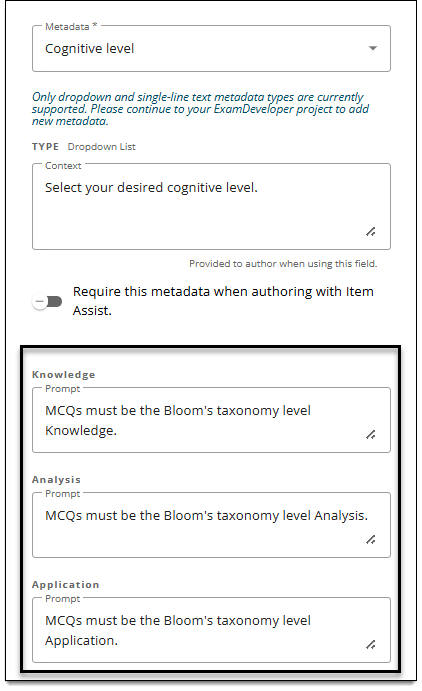
- Click Add. The metadata is now shown in the Added metadata section.
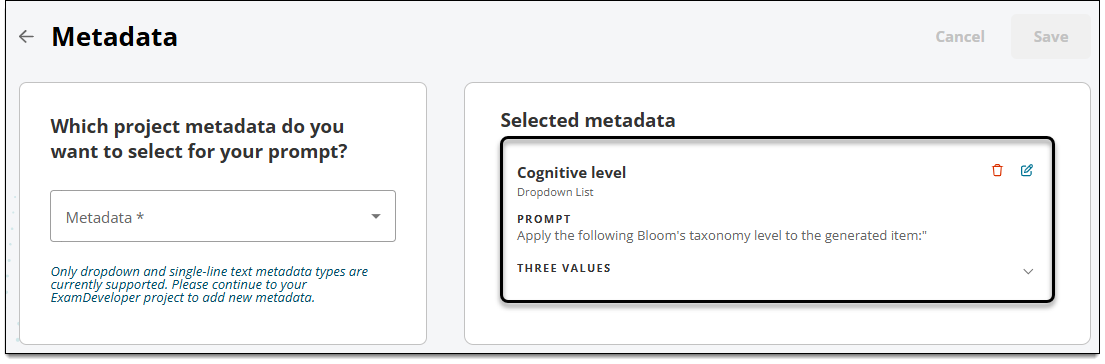
- Click Save in the lower-right corner of the page. The metadata prompt is now visible to authors when they are generating items.
- You must now add the metadata's placeholder to the content generation prompt. See Add blueprint, metadata, or author prompt placeholders on this page for instructions.
 If you don't add the metadata placeholder to the content generation prompt, Item Assist will not have access to the metadata and cannot generate items based on the metadata, even if the author specifies the metadata when generating items.
Edit metadata in Item Assist
- In the Selected metadata area, click Edit for the metadata that you want to edit.
- In the Edit selected metadata area, make the desired changes.
- The name of the metadata field and any dropdown list options are configured in ExamDeveloper on the Manage > Settings > Metadata page. View this page for instructions.
- Click Update.
- Click Save in the lower-right corner of the page.
Remove metadata from Item Assist
- In the Selected metadata area, click Remove from Item Assist
 for the metadata that you want to remove.
- Click Save in the lower-right corner of the page.
- The metadata prompt will no longer be shown to authors when generating items with Item Assist.