Prompt
The prompt allows organizations to use a custom set of instructions with Item Assist. For example, specifications or characteristics such as the stem structure and number of options per question can be defined in the prompt.
|
|
Select item type
|
|
 Item types must be selected on the
- In the top-right corner, select an item type prompt to edit.
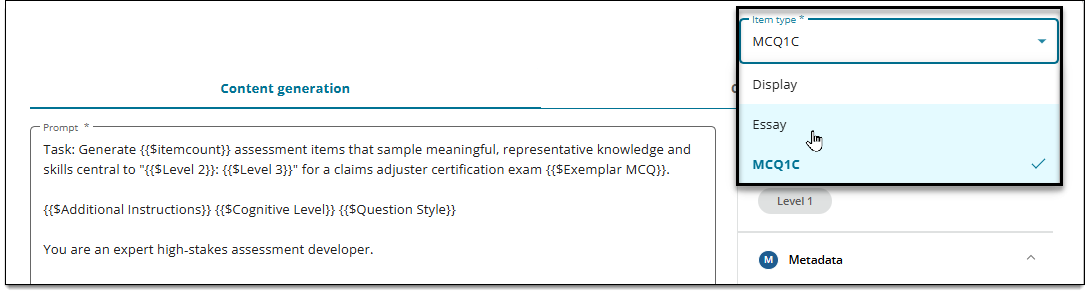
- The default prompts for the selected item type template are displayed. You can now edit the prompts as described in the following sections.
Edit the prompt
The Content generation prompt is used when generating new items, while the Content refinement prompt is used when refining items. Predefined prompt text is included by default as a starting point for both tabs, but project managers can make changes if needed.
- The Content generation prompt is displayed by default. Click the Content refinement prompt to edit the prompt for refining items.
- Edit the prompt text as needed.
- To view a sample content generation prompt for multiple choice questions, click here.
- Click Save.
- To reset the prompt back to the version before you saved your changes, click Reset.
Add blueprint, metadata, or author prompt placeholders
|
|
- Place your cursor where you want to add the blueprint, metadata or author prompt reference. You can start a new line if needed.
- For best results with the Content generation prompt, metadata references should be placed immediately after the first sentence.
 For the Content refinement prompt, metadata and additional author prompt references MUST be added before the sentence "Leave other elements the same". Otherwise, they will be ignored by Item Assist.
- Click the name of the desired blueprint, metadata, or author prompt on the right side of the page.
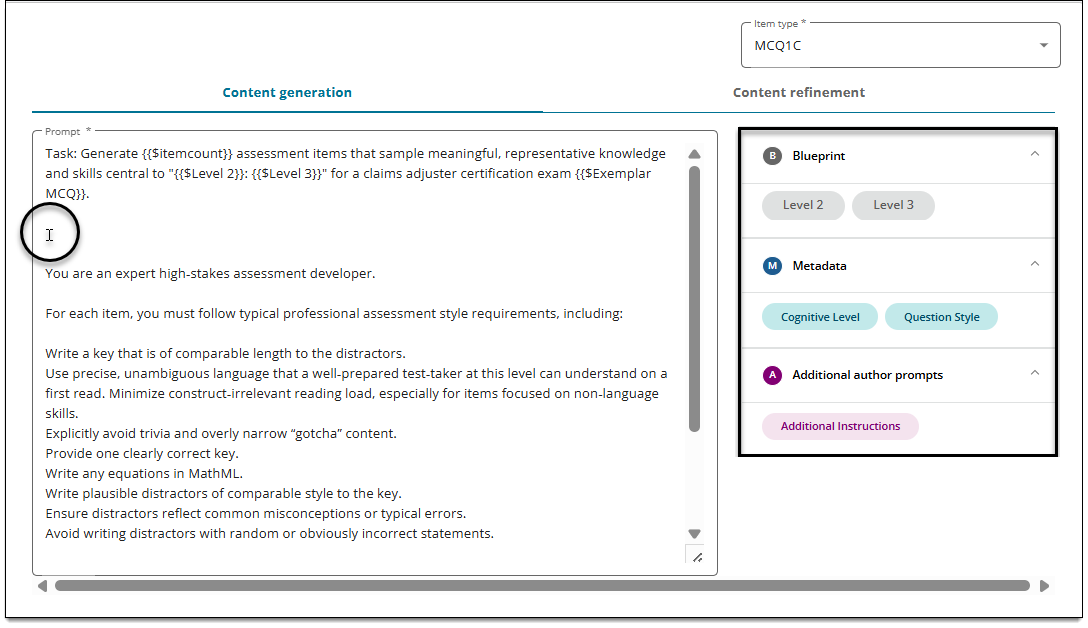
- A placeholder is added to the body of the prompt to include the blueprint, metadata, or author prompt reference in the prompt instructions.
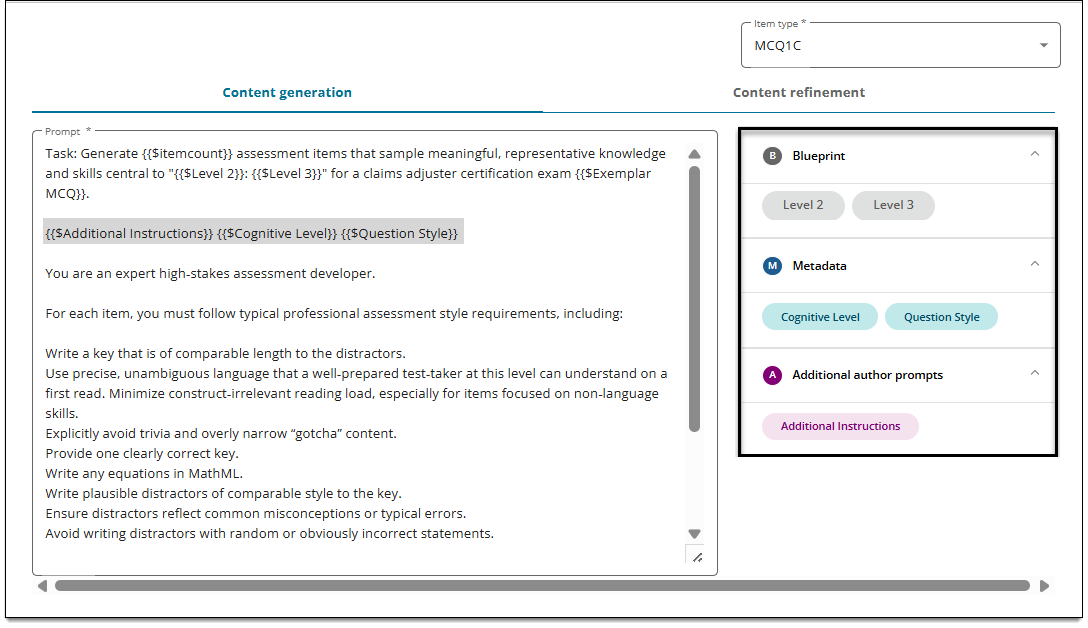
- Click Save.
Reset to the default prompt
- Click Reset to undo any changes you have made to the prompt.
- The default prompt that was present prior to any of your changes will be reinstated.