Search
Manage collections
An item collection is a static grouping of items that can be used as search criteria or for other purposes such as creating assignments, adding to exam forms, or sending for review.
From the Manage views and collections page in Search, you can view or edit your collections. You can add or delete items, change a collection name, change the sequence order of items within a collection, or delete a collection. (Note: You can also add new collections and modify items in existing collections directly from search results.)
|
|
Manage collections
- Click the Viewing menu in the upper-right corner of the page and select Manage views and collections.
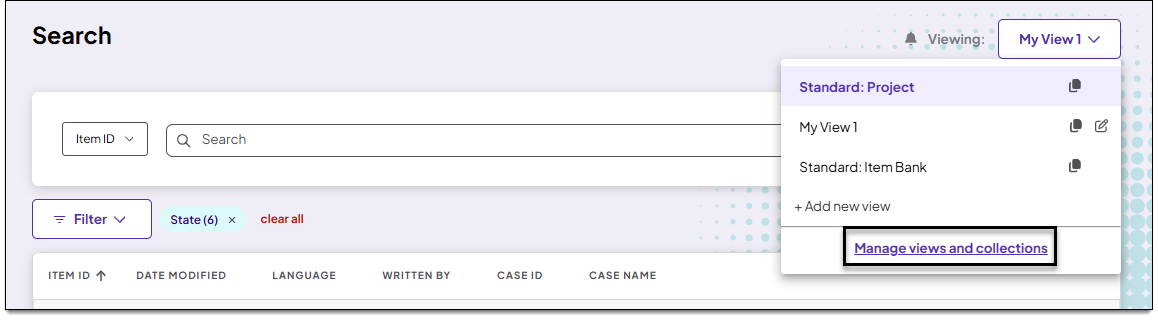
- On the Manage views and collections page, click the Collections tab.
Add items to a collection
- Click
 for the desired collection and select Edit.
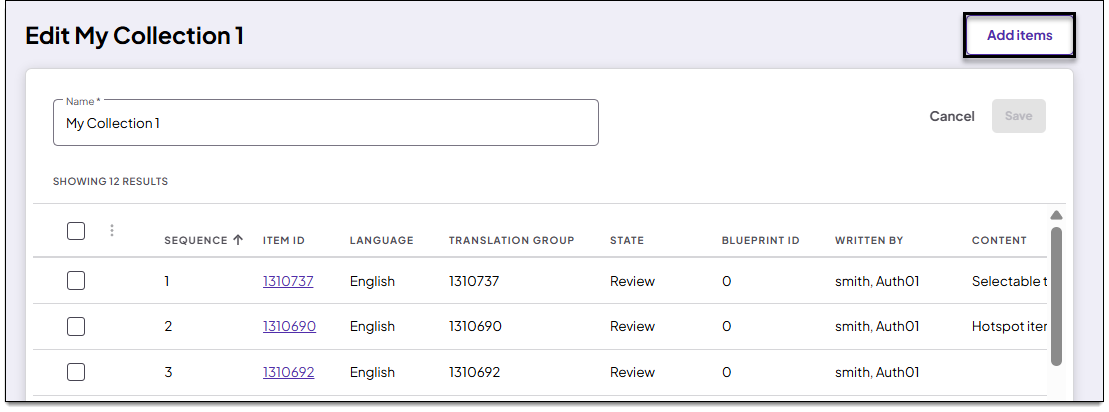
- On the Edit collection page, click Add items in the upper-right corner of the page.
- On the Add items to collection page, perform any search.
- Select the items you want to add to your collection.
- Click
 in the search toolbar and select Add to collection.
 The Sequence order shown on this page will not reflect the sequence in your collections list. However, you can change the sequence ↓ when managing the collection.
- The items are now added to the collection and you are taken to the View collection page, where you can review the item list and sequence.
Remove items from a collection
- Click for the desired collection and select Edit.
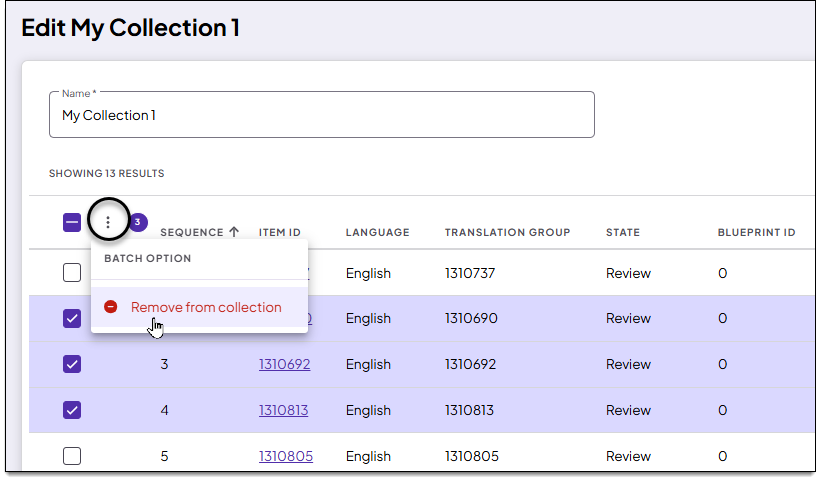
- On the Edit collection page, select the items you want to remove.
- Click in the search toolbar and select Remove from collection.
- Click Save.
- The items are now reordered.
- For example, if you removed the item at sequence #2, the item that was previously at #3 will become #2.
Change sequence (reorder items within a collection)
Explain what sequence is used for
- Click for the desired collection and select View.
- Click Change sequence in the upper-right corner of the page.
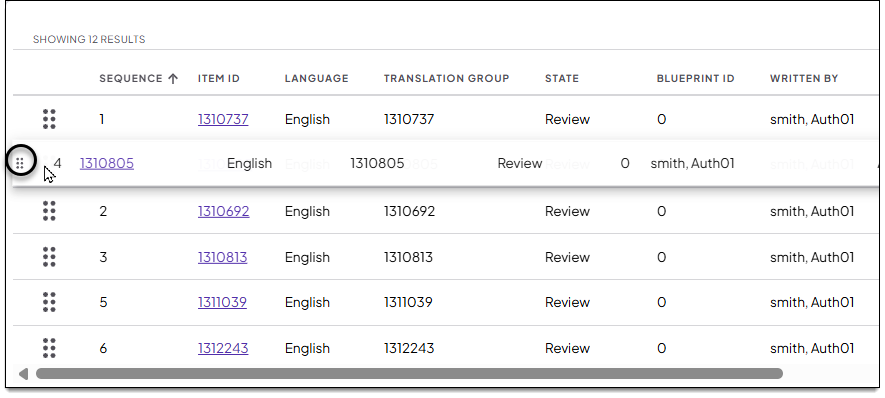
- Click the handles
 for an item and drag it to the desired position in the list.
- Click Save.
Delete a collection
To delete directly from the Manage views and collections page:
- Find the desired collection in the Collections list.
- Click for that collection and select Delete.
- Click Yes in the confirmation window.
- The view is removed from the list.
To delete from the Edit collection page:
- Find the desired collection in the Collections list.
- Click for that collection and select Edit.
- On the Edit collection page, click Delete collection in the lower-left corner of the page.
Add a new collection
- On the Manage views and collections page, click Add > New collection in the upper-right corner.
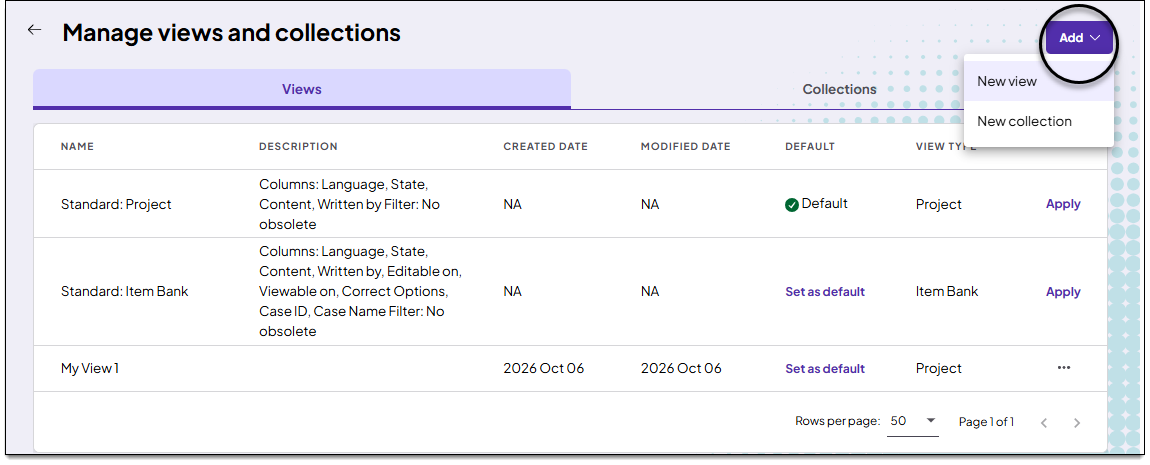
- Type a name in the New collection name field.
- Click Save.
- Click Add items in the upper-right corner of the page.
- Select the items you want to add to your collection.
- Click in the search toolbar and select Add to collection.
- The items are now added to the collection.