Search
Export search results
You can export all content from your current search results to a spreadsheet file (XLSX). Exports are displayed on a queue page where you can access the file for up to 24 hours from the time it is generated.
Export search results
- If needed, change the current view to display the columns that should be included in the export.
 Only columns currently displayed in the search results are included in the export. (If you are currently viewing a custom view, only the columns configured for the custom view will be included in the export. If you are currently viewing the Standard view, only the standard columns will be included.)
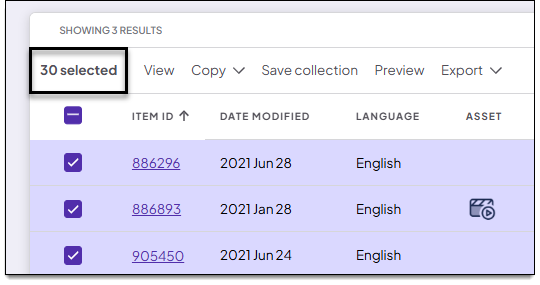
- Select the checkbox next to one or more items, or click the top-left checkbox to select all items.
- Only selected items are included in the export.
- The number of items currently selected is displayed in the search results toolbar.
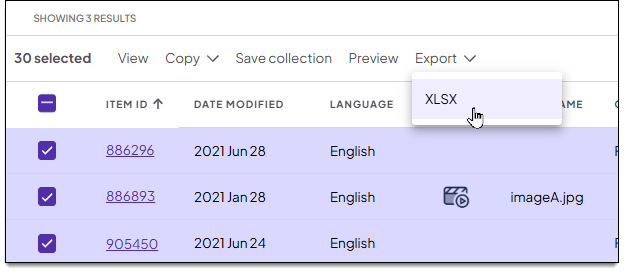
- Click Export > XLSX in the search results toolbar.
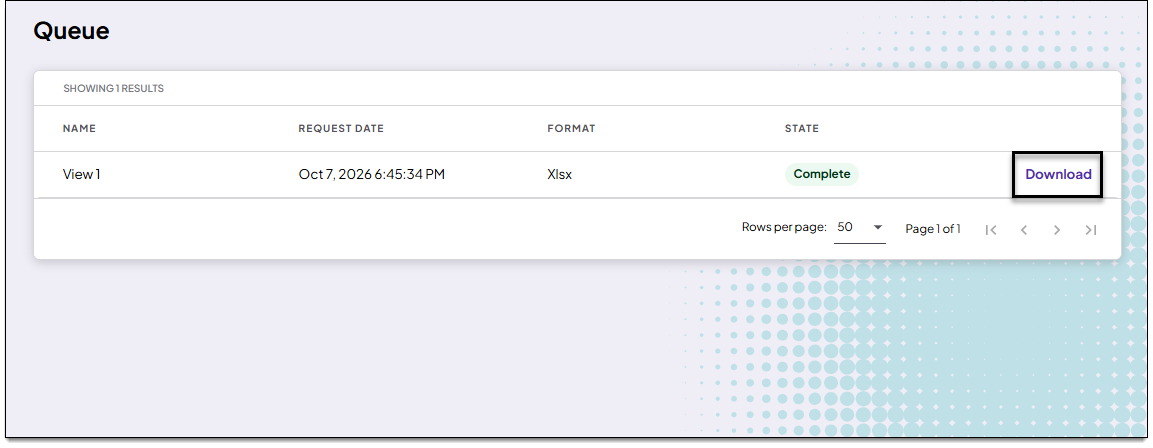
- The Queue page is displayed. To return to this page later, you can access the queue ↓ from the main Search page.
- When exporting large amounts of data (e.g., thousands of items, many columns of data, etc.), the export may take a longer time to complete.
- When the file is ready, click the Download link.
- The .xlsx file will be found in your local downloads folder on your computer or device.
Access the queue
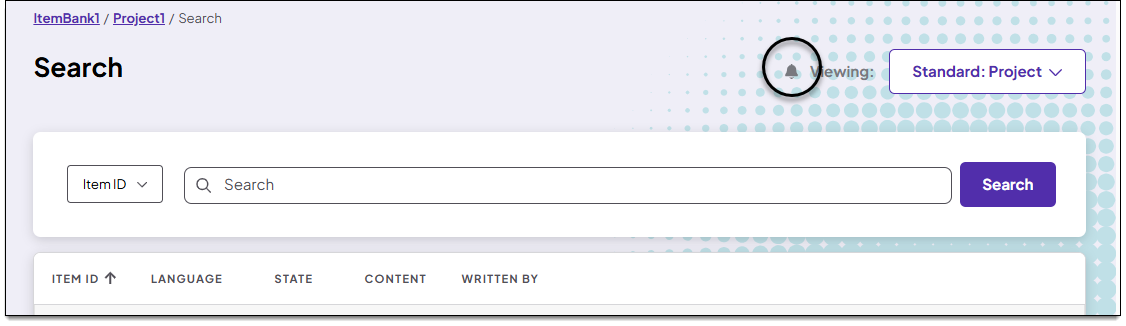
You can leave the queue and return to it later. Files are only available for 24 hours from the time they are generated.
- To access the queue again, go back to the Search page and click the
 in the upper-right corner.
- The Queue page is displayed. When the file is ready, click the Download link.
- Files are only available for 24 hours from the time they are generated.
-
- The file will be found in your local downloads folder on your computer or device.