Add enemy items
Two or more items are typically defined as 'enemies' of each other when they are so similar that the presence of one will make the other redundant, or if they are included in the same exam or case and it will be easier for a candidate to answer one of the enemy items. Inclusion of enemies in the same exam should therefore be avoided in a single case, section, or exam form. Note: items can also be defined as enemies of each other if they are dissimilar.
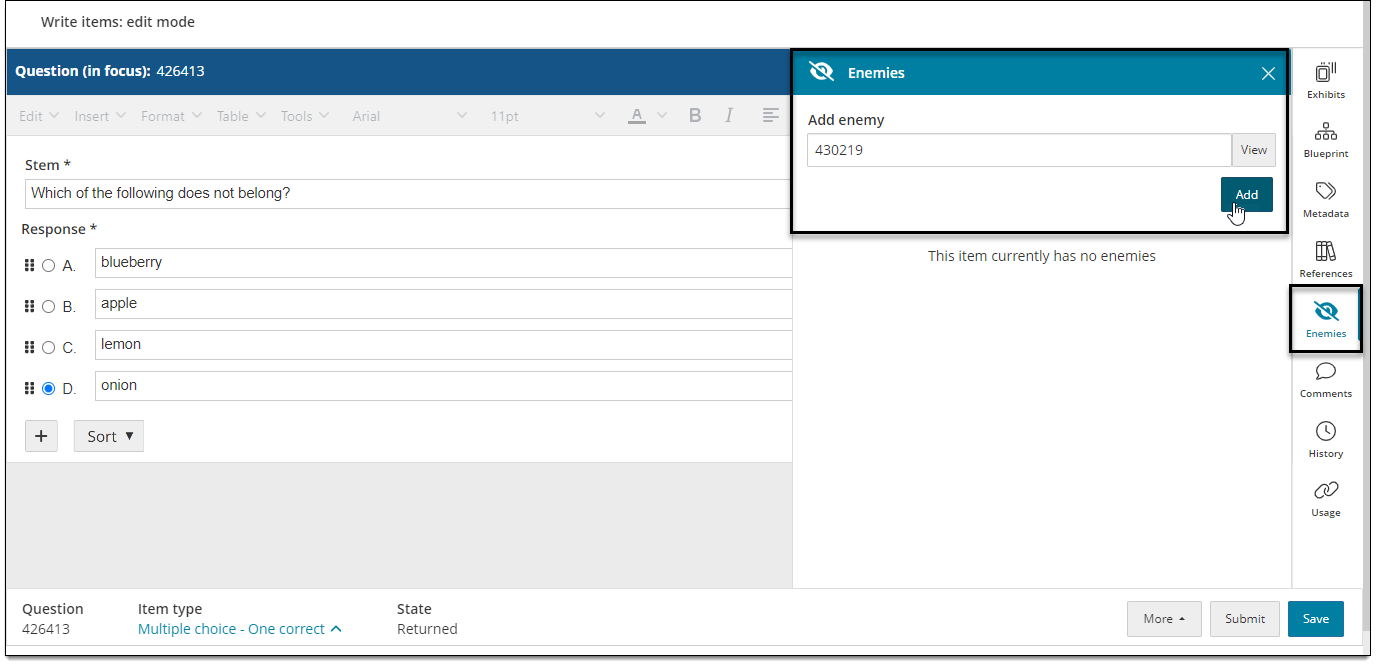
Add an enemy
When two or more items are 'enemies', they cannot be included in the same exam form (unless the person building the exam manually overrides the restriction).
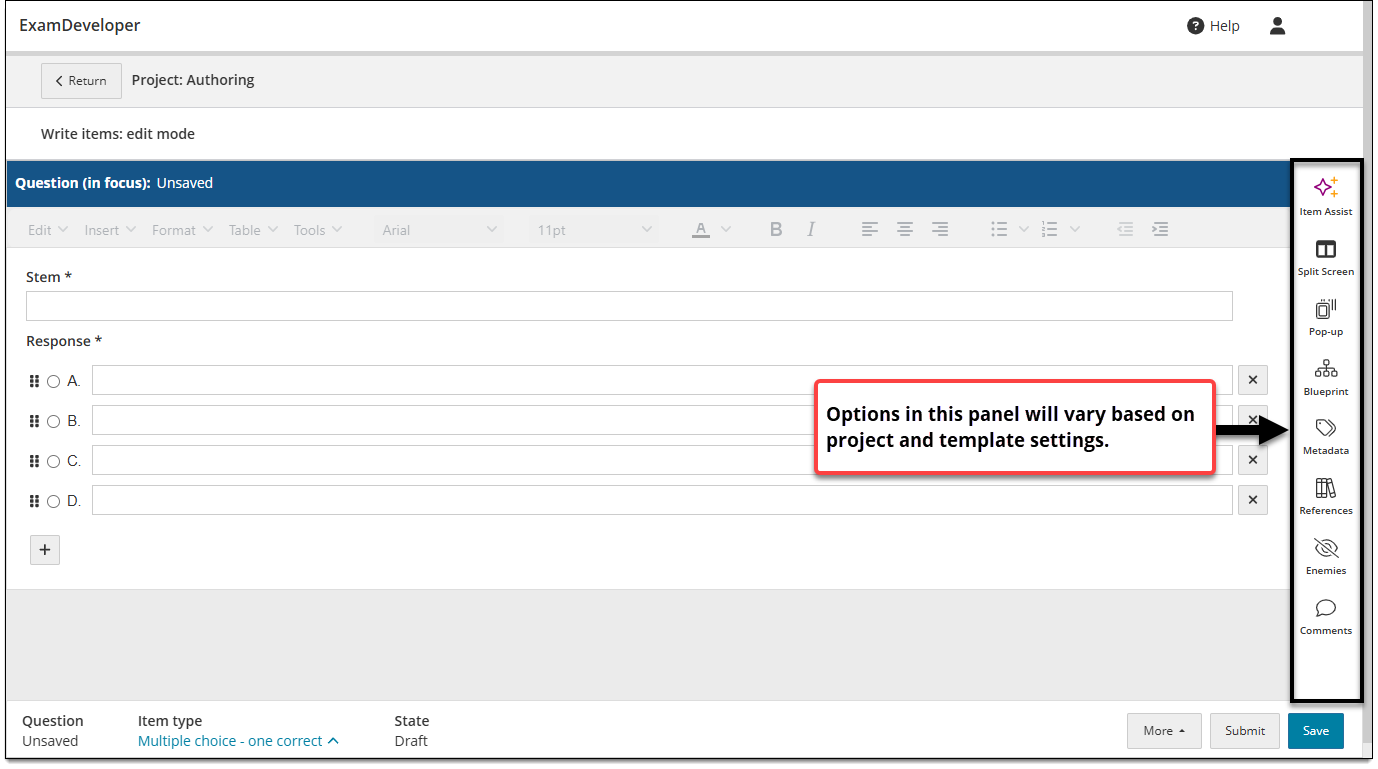
- In the item settings panel
 , click Enemies.
 - In the Add enemy text box, enter the Question ID of the item that you want to associate as an enemy. Click View if you want to preview the item first.
- Click Add.
- Click Save in the lower-right corner of the page to save the item.
The enemy item is added to the Enemies panel (for both items) and can be removed if needed.
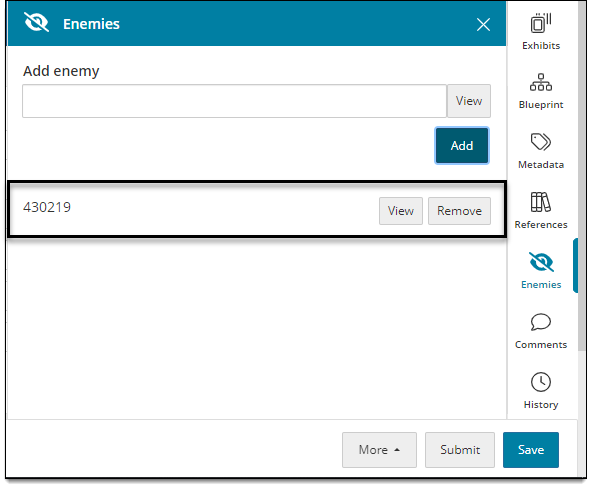
Once an item is associated with an enemy item, both items will be flagged as enemies when building exams from this item bank and cannot be included in the same exam form unless a user manually allows it.
Remove an enemy
- In the item properties panel , click Enemies.
- Below the Add enemy text box , locate the enemy item in the list that you want to remove.
- Click Remove.
- Click Save in the lower-right corner of the page to save the item. The item is removed from the Enemies panel (for both items) and can be added back if needed.